You can use the UT Optical Mark Recognition (OMR) Grade Upload tool to upload grades from optical mark recognition software such as Remark Office and Scantron in to the Quercus Gradebook.
Note: To upload grades into the gradebook in general, using the Import function - OMR Upload should only be used for OMR assessments and should be done according to the instructions below.
Step 1: Create a grade column: Start by creating an Assignment in Quercus, even if your OMR assessment itself was a quiz. This will create a column in the Gradebook for the grades to populate. Follow the instructions for creating an Assignment and select No Submission or On Paper for the submission type.
Note: You cannot combine Quercus Quizzes with an OMR Upload. To upload grades for a Quercus Quiz, use the import function.
Step 2: Make sure grades are hidden
By default, the Grade Posting Policy in the Gradebook should be set to "Manually Post Grades". This means that the grades will be hidden by default and assignment grades are not visible to students until the instructor posts them.
More information on the Grade Posting Policy can be found on this page.
Step 3: Enable the UT OMR Grade Upload menu item in your course navigation menu (will not be visible to students):
Follow the instructions on this page to enable UT OMR in your course.
Part 4: Using the UT OMR Grade Upload tool:
1. Click on the UT OMR Grade Upload in your course menu.
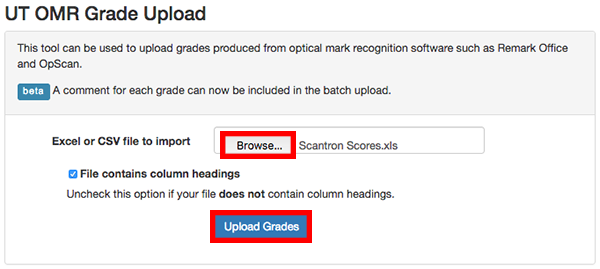
2. On the UT OMR Grade Upload page, click on the Browse button to upload your Scantron file, and then click the Upload Grades button.
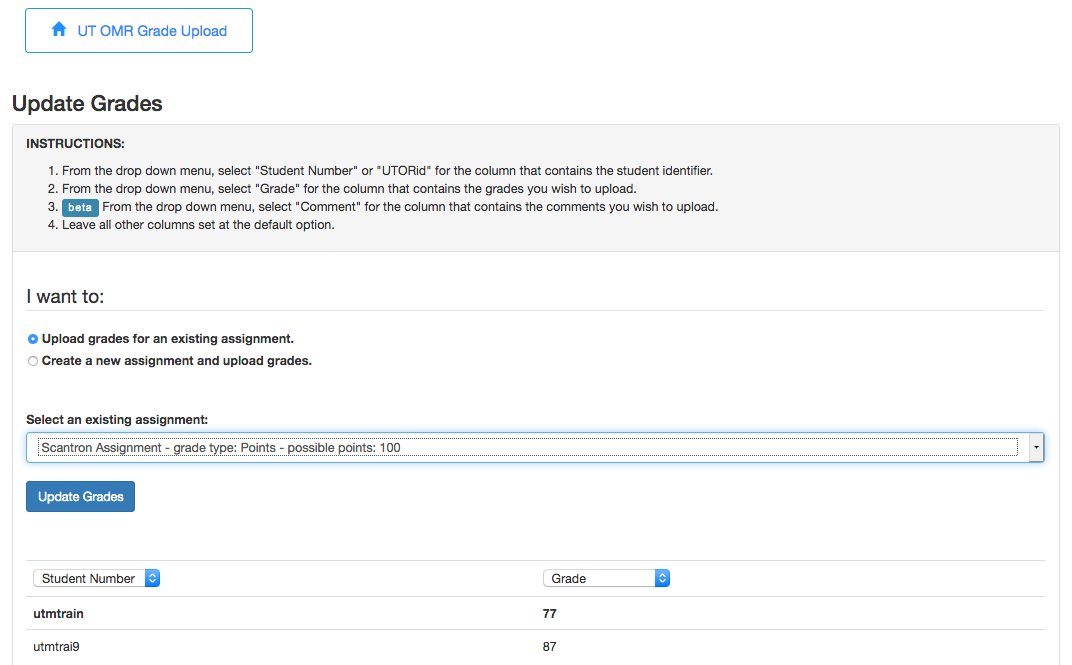
3. On the Update Grades page, either select the "Upload grades for an existing assignment" and then choose the assignment that you created using the "Part 1" instructions above (recommended), or select "Create a new assignment and upload grades" and enter an assignment name and the points possible.
4. In the section below, assign the student number column to the Gradebook Student Number column and the raw score column to the Grades column.
5. Select the Update Grades button.

You should now see the Scantron grades in your Gradebook and you can post the grades when you are ready to share them with your students.
Notes:
- Ensure that there are no additional spaces between the data and the headings and if you are uploading a file with headings, please ensure the checkbox File contains column headings is selected.
- If you are uploading a file with no headings, then please ensure there are no additional rows between the top of the worksheet and the data. Ensure that the checkbox File contains column headings is not selected.
- If you are experiencing issues with uploading your file, then please make sure is NOT a 97-2003 .XLS file. Please try saving the file using Save as option in Excel to the format CSV (MS-DOS) or XLSX.
More information on the UT OMR Grade Upload tool can be found by following the link below.
https://teaching.utoronto.ca/tool-guides/ut-optical-mark-recognition-grade-upload/