Quercus is the university's Learning Management Engine (LME).
The LME integrates various educational technology applications and functionalities, in addition to supporting many of the tools that faculty are using with their courses. Quercus is integrated with ACORN/ROSI (U. of T.'s student information system).
How are Quercus Courses Created?
Quercus courses are created according to data from ACORN approximately 2-4 months before the start of term. Separate Quercus courses are created for all sections of the course - lectures, tutorials, and practicals. Students are enrolled in their appropriate Quercus courses (including both lectures and tutorials / practicals) once they enroll in ACORN. Instructors are enrolled based on data from HRIS and the timetable. However, instructors are only enrolled in their lecture courses. If you would like to be added to your tutorial and/or practical sections, fill out our request form (Note: UTORid and password are required to log into the request form).
More information on the Course Life Cycle, including a timeline of when instructors and students have access to Quercus courses, can be found at the link below.
https://teaching.utoronto.ca/resources/course-life-cycle/
Quercus Overview Video
Step-by-Step Instructions for Logging into your Quercus Course
- Go to https://q.utoronto.ca.
- Enter your UTORid and password.
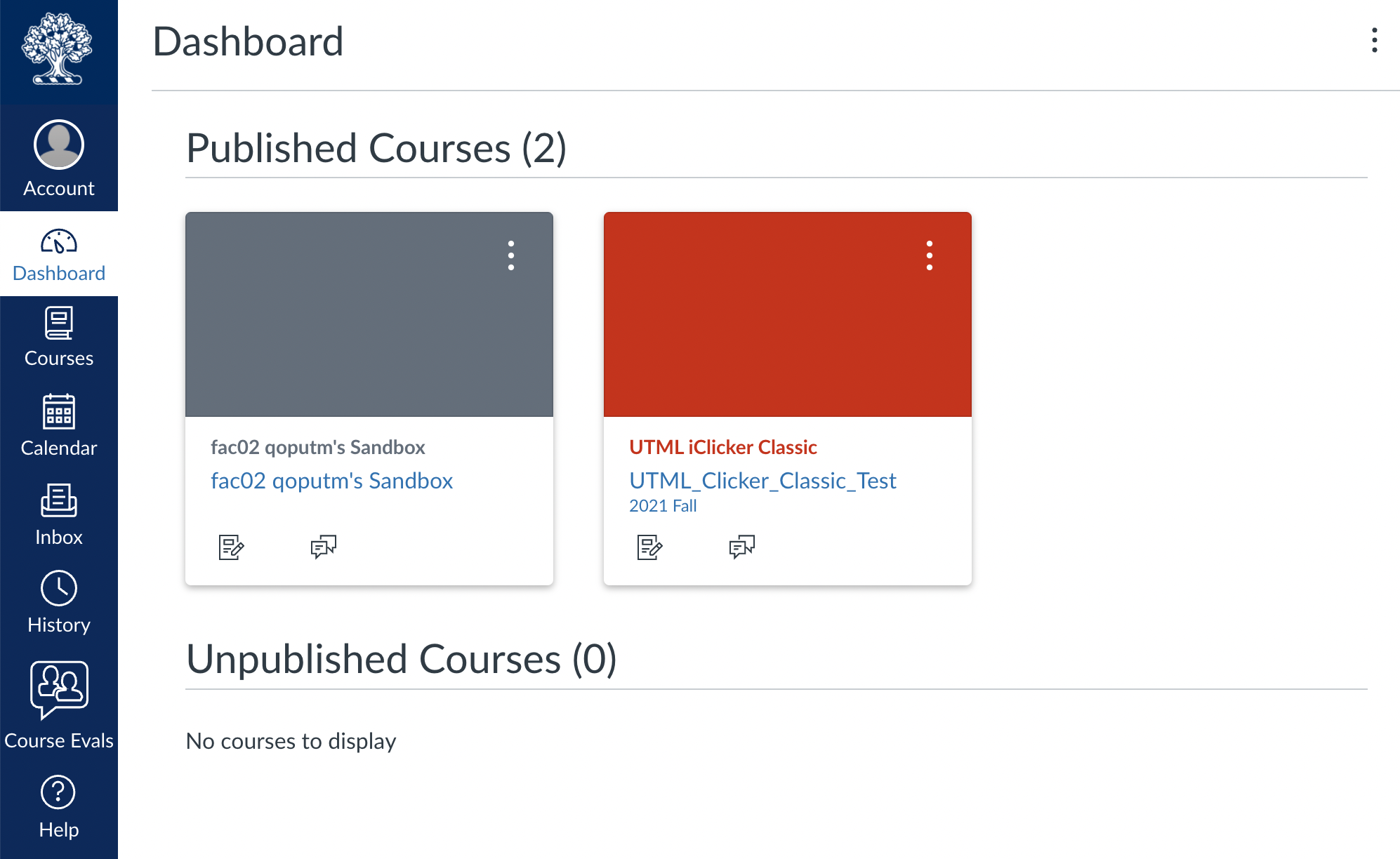
- Once logged in, you will see your Dashboard. You should see a Course Card for each of the courses you are teaching (or enrolled in). Click on the course card or course name to enter the course.
Troubleshooting
If you cannot log-in to Quercus:
- If you have not yet done so, activate your UTORid
- Verify your UTORid to check for problems
- Have you recently signed up for U. of T. Multi Factor Authentication (MFA)? There may be an issue related to access if you have made changes to your phone (e.g., factory reset) and are using your phone for the U. of T. MFA process. If you need help, please visit the webpage - https://isea.utoronto.ca/services/utormfa/ for more information.
Note: Bypass codes can be generated at the following link: https://bypass.utormfa.utoronto.ca/ - For additional help with your UTORid and password, or with MFA (multi-factor authentication) contact the UTM I&ITS Help Desk
If you do not see your courses in Quercus:
- Go to the course timetable and verify that your name is listed as instructor for that specific course. If you are not listed as the instructor, please request that your Department contact ensures that your UTORid is associated with the course in ROSI. It can take 24-48 business hours for a course to be updated in Quercus.
- Contact your Human Resources Contact or Business officer to verify that your employment record has been activated in HRIS.
Quercus Sandbox Courses
Quercus Sandbox courses are a space created for an individual instructor to experiment with Quercus.
Quercus Sandbox courses:
- can be used to experiment with adding different types of content and exploring different course structures;
- include a Test Student that can be used to see what is visible from the student perspective (NOTE: It is not possible for the Test Student to view certain group features in the People area of Quercus);
- can be used by instructors to experiment and test different tools and Quercus features;
- can be reset using the feature in Settings to Reset Course Content and start over; and,
- can be used as a source to import content into future academic based Quercus courses.
Additional notes regarding Requests for Access to Quercus Course Websites:
- Instructors own the intellectual property for their Quercus courses. The only exception is work specifically commissioned by the University under a written agreement in which copyright is assigned to the University.
- In the event you are unable to continue teaching your course during the semester, consider temporary versus permanent access to your course:
- Temporary - If you are unsure who will be put in place to continue teaching your course, you can email your department chair (with a copy to UTM Library & Instructional Technologies: utml.instructech@utoronto.ca) and include that you are granting permission for a new Instructor to be assigned to your course.
- In your communication, include:
- Course Code:
- Course Title:
- Email body that specifically details that you grant permission for a new person to be added to your course shell. This text should be edited to capture your situation, specifying if this is blanket permission for anyone who takes over your course (assigned at the departmental level) or for a specific person (if you know who will be teaching the course while you are away).
- Dates of Access, name and utoronto.ca email address (if known):
- Role in the course (course roles and permissions):
- Once the request is sent and you have received confirmation from your department chair, you can use the steps to add someone to your course or a member of the UTM Library & Instructional Technologies can enroll a new person or other member of the teaching team to your course.
- In your communication, include:
- Permanent - If this is a long term, official change, it should be reflected in ROSI (via communication with your departmental ROSI Administrator). It usually takes 24-48 hours for the change to be reflected in Quercus.
- Temporary - If you are unsure who will be put in place to continue teaching your course, you can email your department chair (with a copy to UTM Library & Instructional Technologies: utml.instructech@utoronto.ca) and include that you are granting permission for a new Instructor to be assigned to your course.
- Non-instructor Access to Quercus academic courses: As noted on the CTSI webpage under the section Requests for Access to Course Websites - Access to Course Websites and Content Areas for those other than the course instructor, staff cannot provide non-instructor access to a Quercus course without written permission from the instructor (Note: An email is sufficient). If it is not possible to receive written permission from the instructor, then requests will need to have the approval of the Office of the Vice-President and Provost for adjudication. The request must include:
- the full course ID:
- the instructor’s name:
- the date that the course will no longer be required for access:
- the name, UTORid, and level of access (course roles and permissions) of the person who requires access to the course
Getting Started
For information on how to get started on using Quercus, visit our Start Here page.
Getting Help
Contacting the UTM Library & Instructional Technologies Team
For support with your online teaching, please reach out to the UTM Library & Instructional Technologies Team
- Submit a ticket to Instructional Support on the UTM Service Portal at http://uoft.service-now.com/utm/
- Email: utml.instructech@utoronto.ca
We can set up individual or group consultations by phone or via virtual meeting.
Quercus Training Sessions
We provide online training sessions on using Quercus throughout the year. Visit out Quercus Training page for more details.
Teach Anywhere
We have created a UTM Teach Anywhere Quercus course and have sent an invite to all UTM instructors who are currently teaching full and half year courses. This is a central, online space to work together, share information and meet online. If you are a UTM instructor who is currently teaching this semester, you should be able to access the UTM Teach Anywhere course already by logging into Quercus at https://q.utoronto.ca with your UTORid and password.
If you declined the invite in Quercus and would like us to resend an invitation, please let us know by emailing us at utml.instructech@utoronto.ca