It is possible to change the order of your grade columns in order to improve column organization by following the steps below.
Step by Step Instructions for Re-Ordering Grade Columns
- Select Grades from the Course Menu.
- Click onto the grey area of the column header for the column that you would like to move. Do not click on the Assessment name.
- Drag-and-drop the column to the desired location.
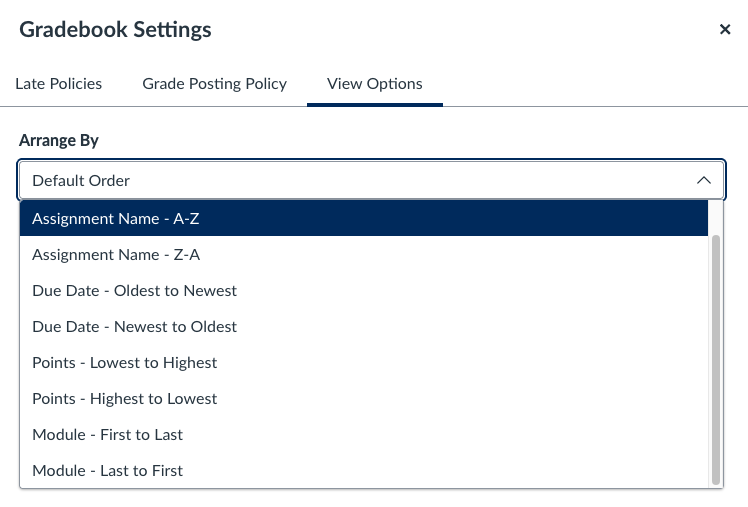
You can also re-arrange the columns in the Gradebook by selecting the View Options tab under Gradebook settings menu, clicking on the Arrange By field and selecting an option.
Note: You can also increase or decrease the width of any column by hovering over the column border and dragging it to be become smaller or larger.