Each Quercus course has a Course Navigation Menu, a series of links on the left side of your course that help you access different course areas. Links that are hidden from students will appear with a crossed-out eye icon next to them, however instructors can still access these course menu items.
Navigation links or menu items can be enabled, disabled (hidden), or reordered. Although course menu items cannot be renamed, custom menu items can be added by installing the Redirect Tool (more information below).
To Enable Menu Items
1. Click on Settings in the Course Navigation Menu
2. Select the Navigation tab
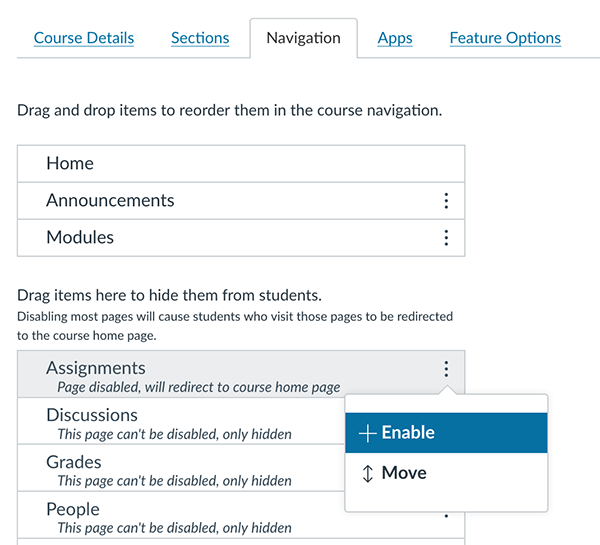
3. Drag-and-drop the menu items that you would like students to have access to above the line entitled "Drag items here to hide them from students" (alternatively, you can click on the 3 vertical dots for each menu item menu and select Enable).
4. Scroll down to the bottom of the menu items and click the Save button.
To Disable Menu Items
1. Click on Settings in the Course Navigation Menu;
2. Select the Navigation tab;
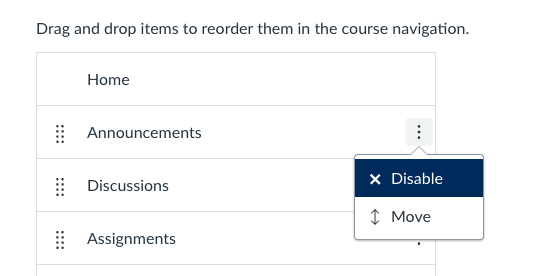
3. Drag-and-drop the menu items that you wish to restrict access to below the line entitled "Drag items here to hide them from students" (Alternatively, you can click on the 3 vertical dots for each menu item menu and select Disable).
4. Scroll down to the bottom of the menu items and click the Save button.
To Move Menu Items
1. Click on Settings in the Course Menu;
2. Select the Navigation tab;
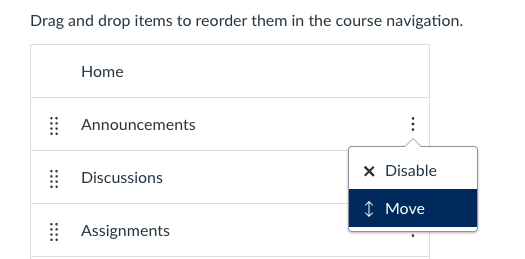
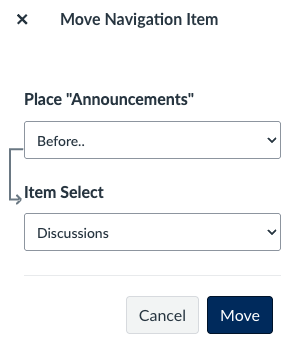
3. Drag-and-drop the menu items that you would like to move into the desired location (alternatively, you can click on the 3 vertical dots for each menu item menu and select Move - a Move Navigation Item panel will appear to the right, allowing you to place the menu item in a new position using a dropdown menu).
4. Scroll down to the bottom of the menu items and click the Save button.
Adding Custom Course Navigation Menu Items Using the Redirect Tool
The Redirect Tool allows you to add a link to an internal or external webpage to your Course Navigation Menu.
NOTE: This tool has several caveats for use, including that you cannot delete menu items that are added using the Redirect Tool. This means that if you copy forward your course from one year to the next, you may end up with many additional links that have been added using the Redirect Tool that cannot be deleted.