The Assignment tool creates an assignment within Quercus and, depending on the type of assignment, allows students to submit assignments directly within Quercus. Once students have submitted their assignments, they can be viewed and graded and feedback provided using the SpeedGrader tool.
If you have technical questions about setting up a Quercus assignment, please contact the UTM Library & Instructional Technologies team at utml.instructech@utoronto.ca.
If you have questions about online assignments that will meet student learning outcomes and objectives please contact the Robert Gillespie Academic Skills Centre at eddev.utm@utoronto.ca.
Instructions for Creating a Quercus Assignment
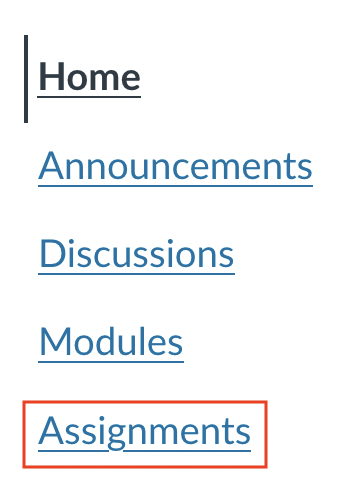
1. Select Assignments from the Course Menu.
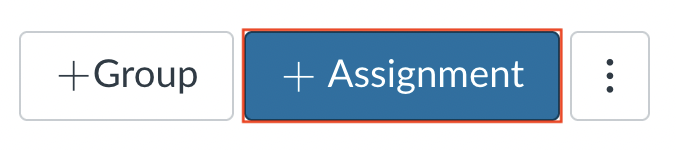
2. Select the + Assignment button.
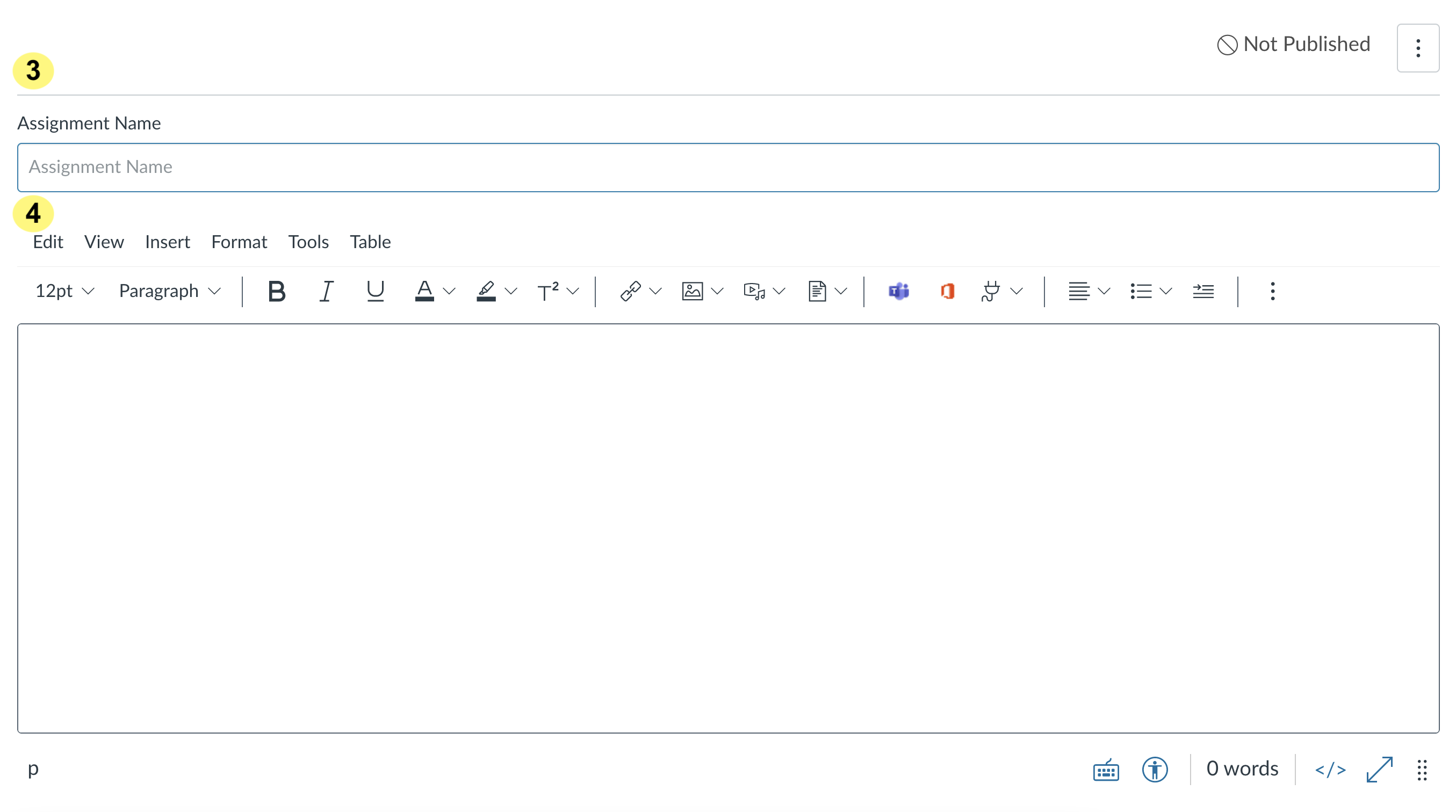
3. On the next page, enter an Assignment Name.
4. In the Rich Content Editor field, enter instructions for how students must complete or submit their assignments.
Information that could be included in instructions to assist students with completing a Quercus assignment includes:
- Goal of the assignment.
- Documents needed to complete the assignment.
- Instructions regarding how students are to complete the assignment.
- Acceptable file types for online submission
- Any word limits.
- Authorized aids / Unauthorized aids.
- Academic Integrity reminder, some wording is suggested below:
- In submitting this assignment, the expectation is that your conduct during this assessment adheres to the Code of Behaviour on Academic Matters and that you have not acted in such a way that would constitute cheating, misrepresentation, or unfairness, including but not limited to using unauthorized aids and assistance, impersonating another person, and committing plagiarism.
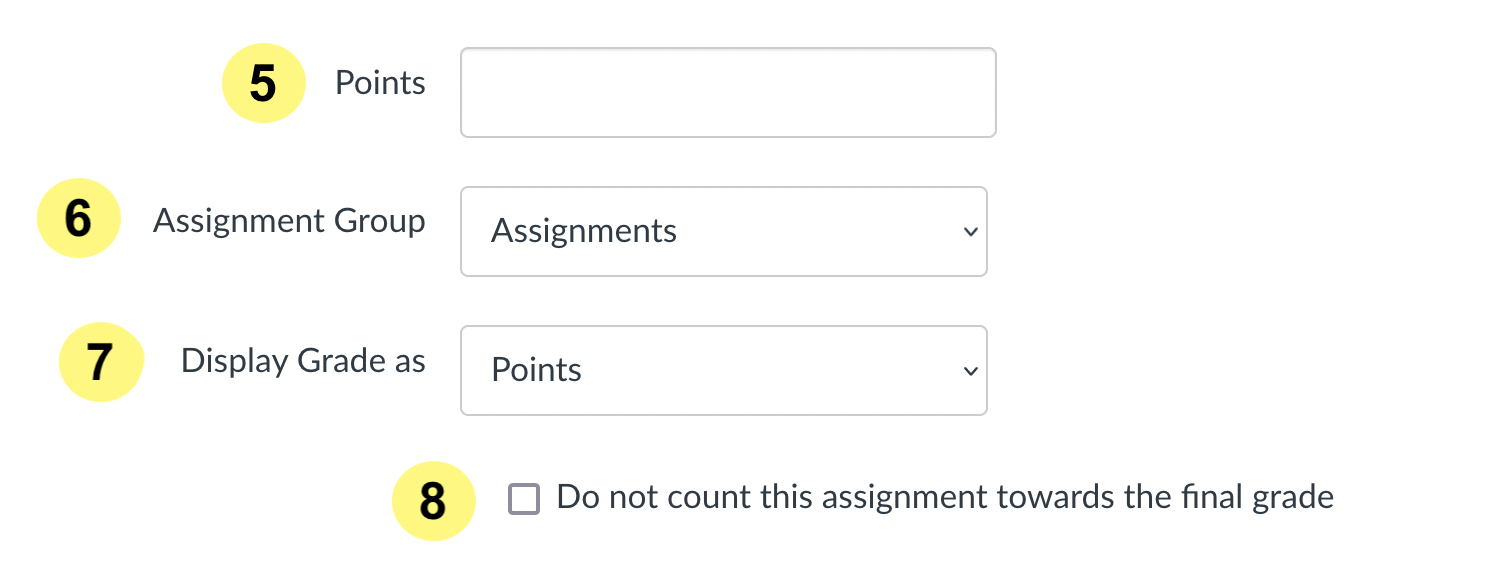
5. Enter Points for the assignment.
Note: "Points" represents the scale used to mark the assignment (e.g. /5 or /100), and not the relative weight of the assignment within the course. For assignment weighting, please see the Assignment Groups and Weighted Grades page.
6. If you are using assignment groups, select the Assignment Group from the drop-down menu. You can also create a new Assignment Group while creating your assignment, or place your assignment in an Assignment Group later on the Assignments page.
7. In the Display Grade as drop-down menu, select the method (Percentage, Complete/Incomplete, Points, Letter Grade, GPA Scale, or Not Graded) you want to use for grading. We strongly recommend using Points as the system works best with this setting.
8. Check the "Do not count this assignment towards final grade" box if you do not want this assignment to be used in the calculation of the students' final grades (such as a practice assignment).
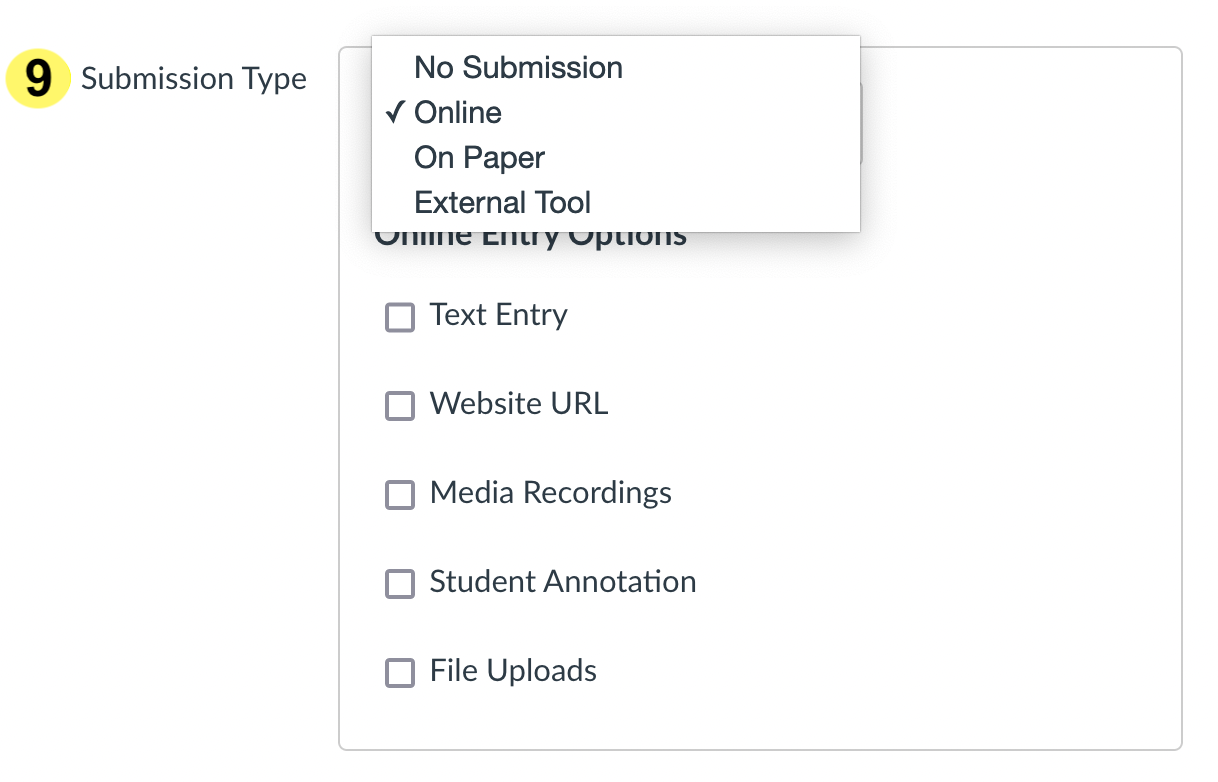
9. Select the Submission Type that you want to accept from the drop-down menu:
- Online (default): allows students to upload submissions directly in to Quercus
Notes regarding Online Submission Types:- Only File Upload submissions can be annotated in the Speedgrader. Other types of submissions, such as Text Entry, cannot.
- If you need to restrict the file type, then please consider and communicate to your students all possible file types you would accept (including older and newer versions) for example .doc, .docx, .xls, .xlsx, .pdf, etc.
- Student submissions will not count against the course storage quota
- Instructors can view uploaded student submissions in the SpeedGrader
- We have specific instructions on creating different online file types such as Audio/Visual Assignments, Annotation Assignments and Journal Assignments
Instructions for students submitting an online assignment can be found here.
- No Submission: creates a column in the Gradebook that allows you to give students a grade for an activity with no submission (e.g., participation marks).
- On Paper: creates a column in the Gradebook that allows you to give students a grade for an assessment that is submitted during class, such as a in-class quiz or exam.
- External Tool: choose this option when you would like students to submit their assignments using an integrated tool (e.g. peerScholar).
Notes:
- Students can only submit one submission type per assignment submission.
- Quercus will retain the most recent Assignment settings.
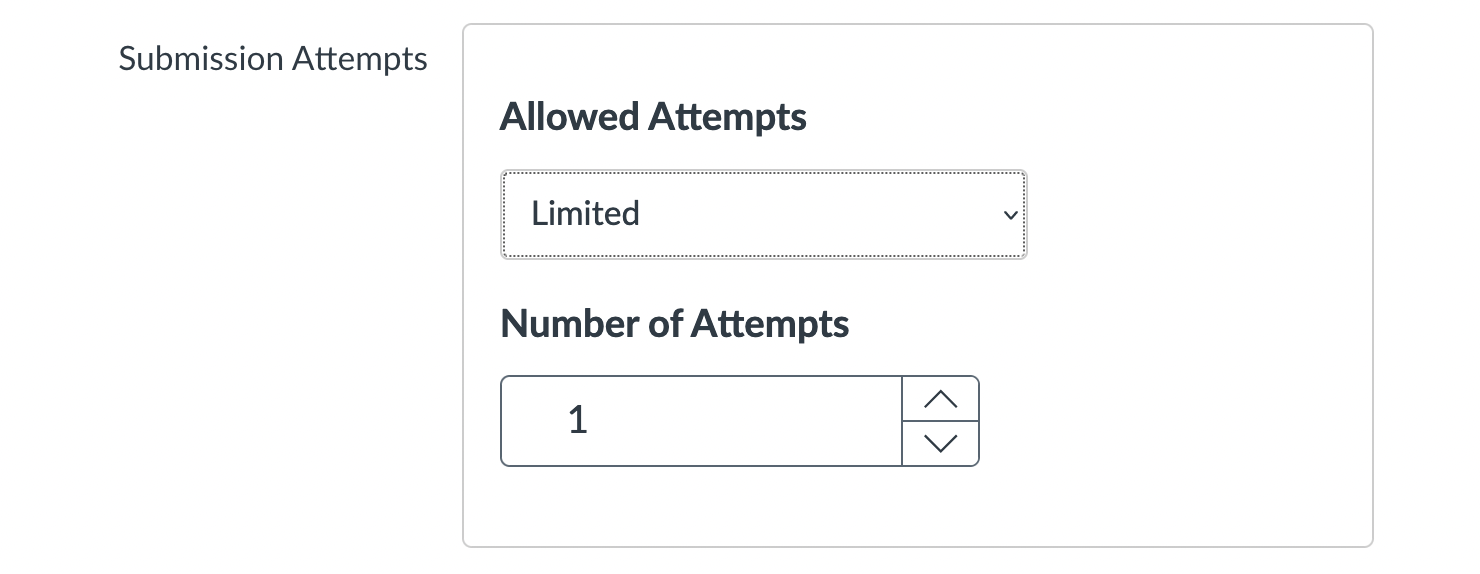
10. In the Submission Attempts section, the Allowed Attempts drop-down menu is set to Unlimited.
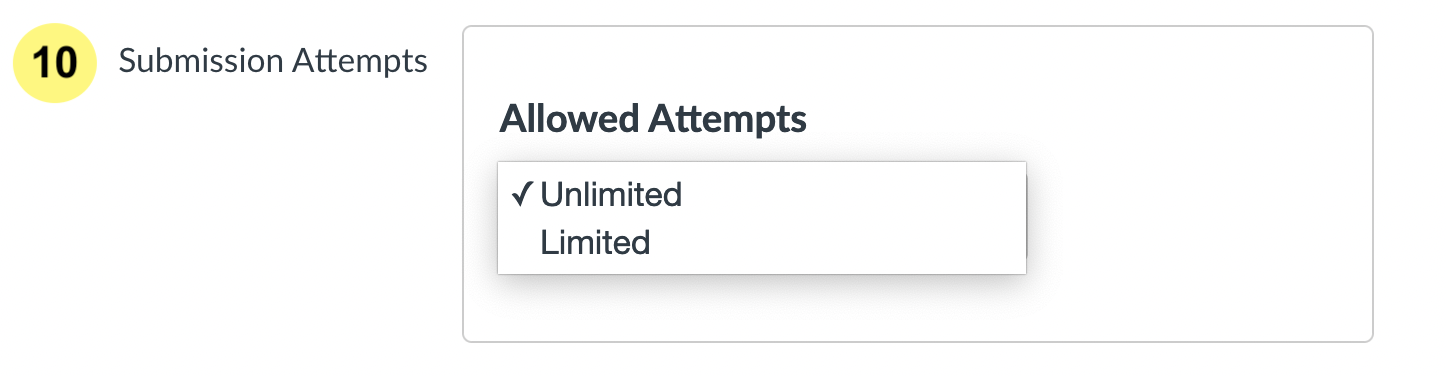
- You can change this option to Limited and specify the number of attempts.
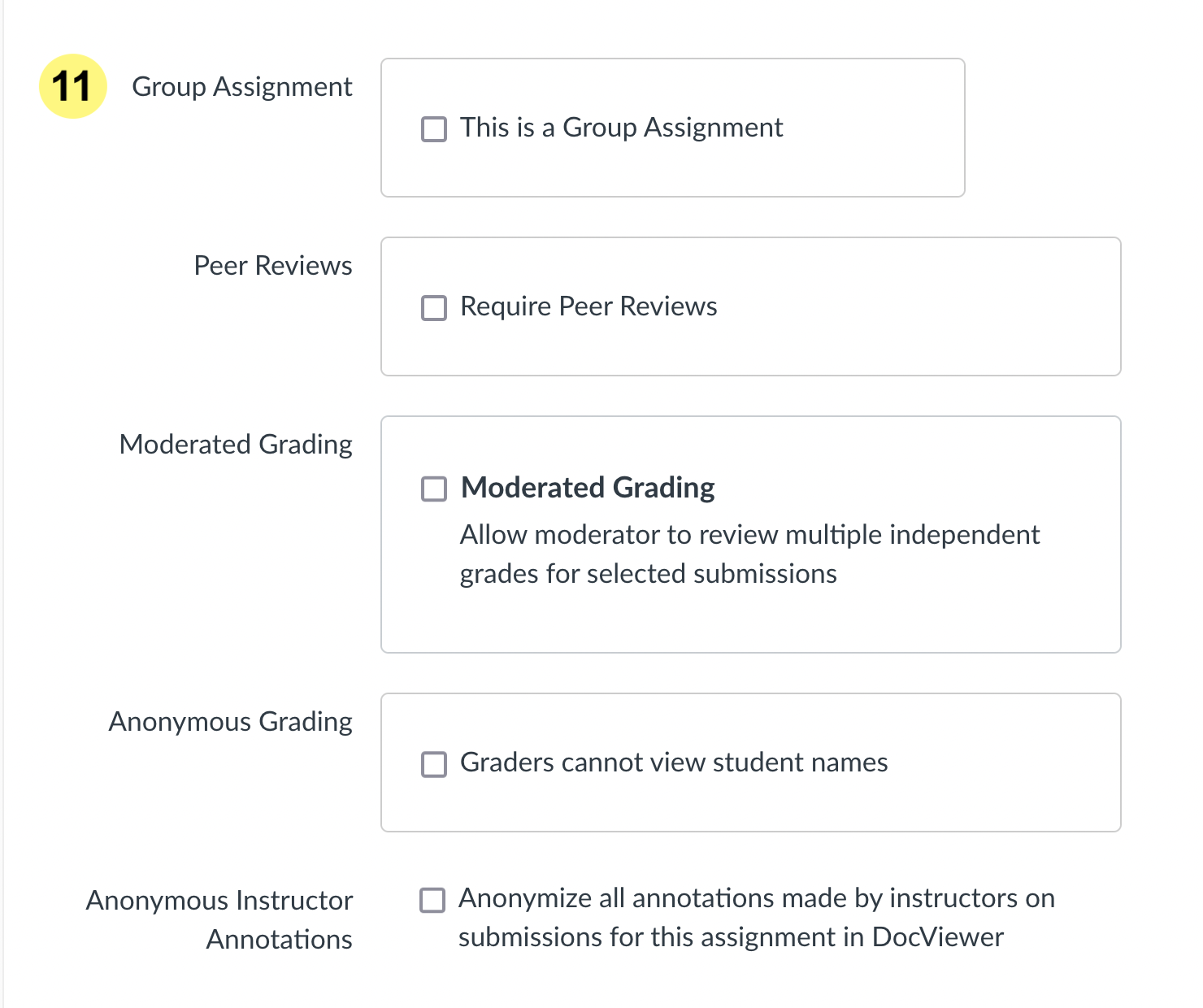
11. Please contact us if you are interested in setting up Group Assignments, Peer Review Assignments, Moderated Grading, Anonymous Grading or using Anonymous Instructor Annotations.
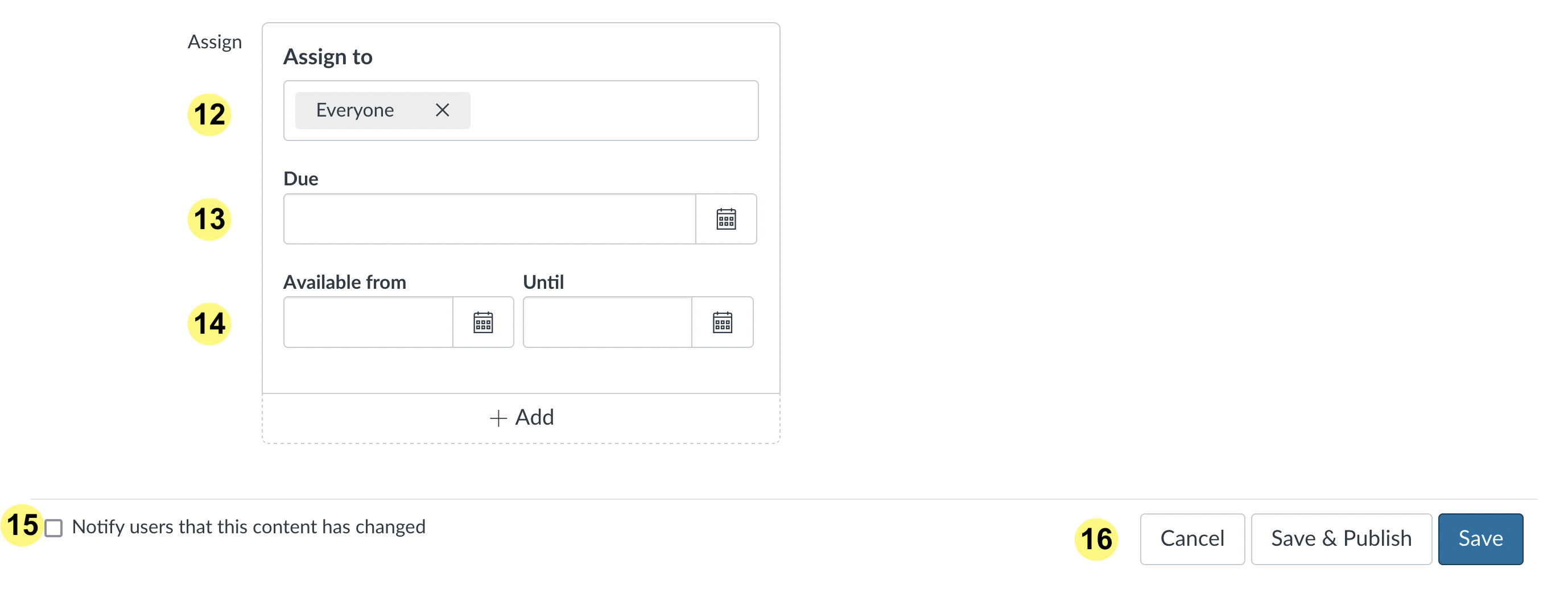
12. In the Assign to section, you can assign the assignment Everyone, an individual student, a number of students, or specific course section(s).
Note: If you have a student who has been granted an accommodation from UTM Accessibility Services, please see our Accommodations in Quercus instructions.
13. Enter a Due Date. Submissions can be accepted after this date (depending on the availability window you set), but will be tagged as "Late" in the Gradebook.
Note: Currently, when you download the Gradebook it does not indicate which submissions are late. This information is only available online in the Gradebook and SpeedGrader.
14. Enter an Available from and Until date. This sets the time period during which students can submit.
15. Check the "Notify users that this content has changed" check box if you want to notify users when you have made changes to the assignment.
16. Save (create a draft of your assignment so you can publish it later) or Save & Publish the Assignment to make it available to students.
Optional: After you Save or Save & Publish the assignment, you can add a Quercus Rubric.
Additional Resources
Centre for Teaching Support & Innovation (CTSI) - Quercus Assignment
https://teaching.utoronto.ca/tool-guides/quercus-assignment/