You can download the Gradebook to:
- Work with student grades in a program such as Excel;
- Retain a copy of student grades for your records.
Once downloaded, grades can be filed and stored, or changed offline and then uploaded back to the Gradebook.
It is a best practice to regularly create backups of student grades throughout the term and after each major assessment.
Step by Step Instructions for Exporting Grades
1. Select Grades from the Course Menu.
2. Select the Export button.
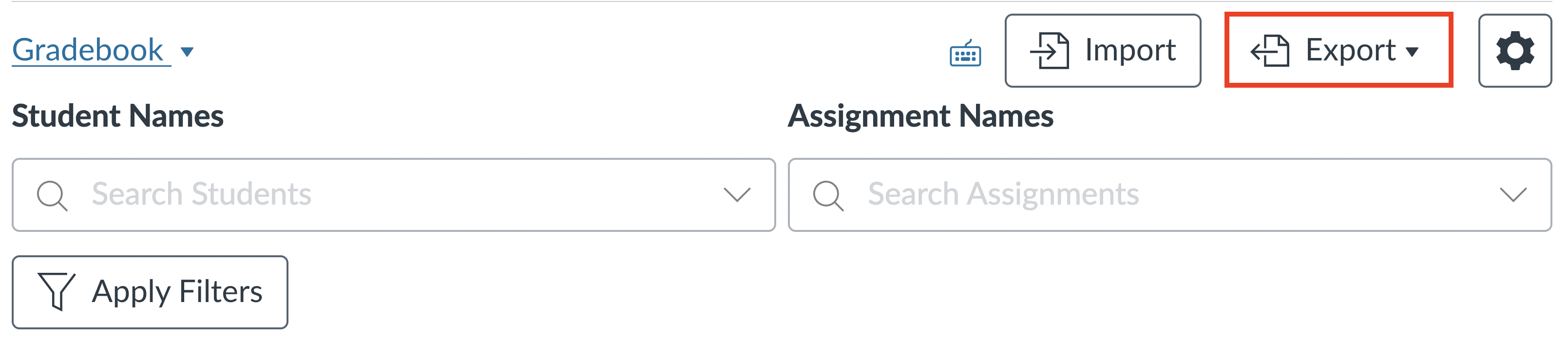
4. You will see a "Gradebook export started" message, which will appear in a banner above the Gradebook.
5. A dialogue box will appear asking you to either open or save the CSV file on your computer.
The CSV file will contain student names, sections, student numbers and UTORids. You can open this file using a spreadsheet application, such as Excel.
Note: You will need to create an assessment or manually create Gradebook columns before exporting grades.
Working with Downloaded Grades
To add or change grades in a downloaded file, locate the Gradebook file and open it in Excel, or another similar application. The downloaded spreadsheet will look much like the online version of your Gradebook, with the same columns and existing data. Add or change grades in the relevant cells, and save the updated document using the same format.
If you will be uploading edited grades from the spreadsheet back into Gradebook do not make any changes to column headings. Each heading contains a unique identifier number that must remain the same in order for the upload to work properly.
Note: Although we do not recommend the use of letter grades, please note that the if letter grades are entered into the gradebook, they will appear as a percentage in the exported CSV file when grades are exported.