On This Page
- Adding or Changing Grades Manually
- Grade Detail Tray
- Assigning a Zero Grade
- Excusing a Student from An Assignment or Quiz
Adding or Changing Grades Manually
To manually add a grade or change an existing grade:
- Select Grades from the Course Menu.
- Select the cell of the assessment and student for which you would like to add or change a grade.
- Enter the appropriate grade.
- Press the Enter key on your keyboard or click outside the cell to save the grade.
Grade Detail Tray
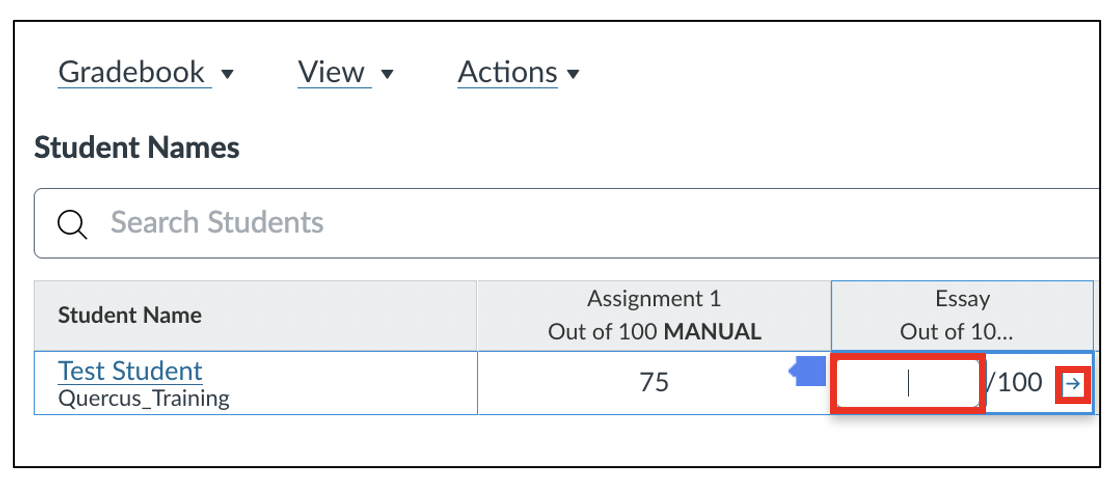
It is possible to access the Grade Detail Tray for a student's assessment by selecting the right-facing arrow next to the Gradebook cell, as shown in the image above.
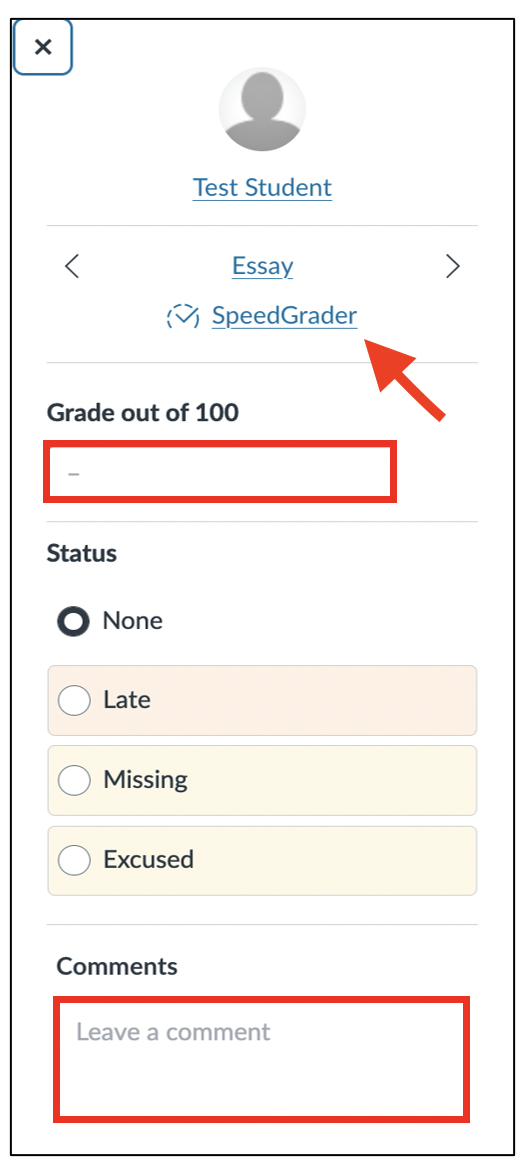
In the Grade Detail Tray panel that appears on the right-hand side of the page, you can enter a Grade out of [x], assign a Status (“None”, “Late”, “Missing”, “Excused”), enter a comment in the Comments box, and select the link to the corresponding SpeedGrader page.
Assigning a Zero Grade
If a student has not submitted an assignment, there will a dash in the corresponding Gradebook cell. The dash will not be considered as a zero when the total column is calculated. Should you wish to assign a zero, you must enter "0" in the Gradebook cell for that assignment. If you need to assign a zero grade for a larger number of student assignments, there are other methods available which are more efficient.
Excusing a Student from An Assignment or Quiz
Students can be excused from assignments or quizzes by typing "ex" into the column in the gradebook, or by changing the assignment status for that student. When a student is excused from an assignment the calculation of their final grade will be based on the other graded items in the course. For more assistance or additional questions about excusing students from assignments, please contact the Instructional Technologies Team.