On This Page
- What is an Assignment Group?
- Considerations for Assignment Groups and Weighted Grades
- Creating Assignment Groups
- Creating Rules for an Assignment Group
- Weighting Assignment Groups
- Changing the Weight for Specific Students who have Missed an Assignment
- Additional Resources
What are Assignment Groups?
Assignment groups in Quercus allow you to group related assessments in Quercus into categories. For example, if you run weekly quizzes in your course, you could group all your quizzes together into a weekly quizzes assignment group. Assignment groups also allow you to place 'rules' on the group, such as dropping the highest or lowest scores for grade calculation.
Assignment groups also allow you to weight the grades for each group and facilitates the automatic calculation of final grades in the course.
Considerations for Assignment Groups and Weighted Grades
- Assignment groups are created and managed within the assignments page and can include any type of graded assessment (assignment, quiz, discussions)
- Assignment groups can have one assessment in them, or many
- Using assignment groups is the only way to weight grades within Quercus - assignments cannot be weighted directly
- The weighting of assignment groups in Quercus should reflect what it is in your syllabus and should add up to 100%
- Assessments within an Assignment Group will be weighted according to the proportionate points for each assessment. Assessments out of more points will be worth more in the calculation of the final grade:
- For instance, if you have two assignments out of 100 points and they are included in an assignment group worth 30% of the final grade, then each assignment will be worth 15% or half of the total percentage for that assignment group.
- However if you have two assignments, one out of 50 points, the other worth 100 points, the assignment worth 100 points will account for 20% while the assignment worth 50 points is worth 10% of the final grade. If you want them to be worth the same amount, you need to either change the points to be equal, or place them into different assignment groups, each worth 15% of the final grade.
- In the gradebook, you will see a column for each assignment group - the grade displayed in each column will be calculated based on the score entered for each assignment in the Assignment Group.
- It does not matter whether you create your assessments on your assignment groups first, you can add additional assignments or assignment groups at any time
Creating an assignment Group
-
Go to the Assignments area in your course and click +Group in the upper right.

-
Enter a meaningful Group Name and then click Save

- Note: Assignment Groups can also be created during the creation of assessments. For instance, when creating an assignment, you can assign it to an existing Assignment Group or create a new Assignment Group using the "Assignment Group" dropdown menu.

Creating Rules for an Assignment Group
It is possible to set up rules for an Assignment Group that specify whether to ignore or "drop" the grades for assignments within that group.
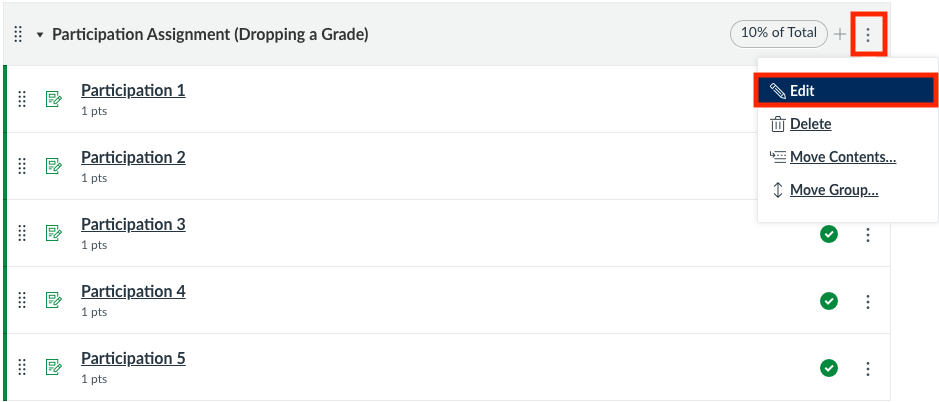
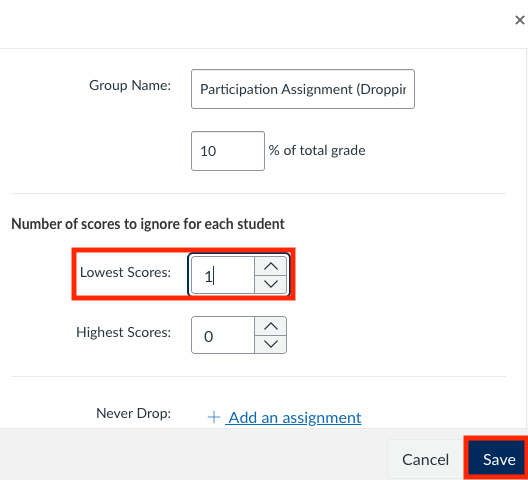
Quercus gives you the option to ignore a specific number of Highest Scores and/or Lowest Scores, as shown in the screen shot below.
- Select the three dots to the right of the assignment group
- Select Edit
- Select the number of scores to ignore
- Select the Save button
Notes:
- It is possible to assign rules to both weighted and unweighted Assignment Groups.
- If you are dropping an assignment in an Assignment Group, it is recommended that all assignments included are of the same points value. If they're not of the same, then dropping one of the scores could disproportionately skew the grade. More information on how to create rules for an Assignment Group can be found at the link below.
https://community.canvaslms.com/t5/Instructor-Guide/How-do-I-create-rules-for-an-assignment-group/ta-p/848
Weighting Assignment Groups
Once you have created your assignment groups, you have the option to weight them. Note that this weighting can be changed or updated at any time.
- Select Assignments from the Course Menu.
-
Select Assignment Groups Weight from the Options (3 vertical dots) dropdown menu (next to the + Assignment button).

-
In the Assignment Groups Weight box that appears, check the box next to Weight final grade based on assignment groups and select the Save button.

- You will then see a list of your assignment groups and a box to entire the percentage of the final grade that they comprise. At the bottom you will see the total percentage. The percentage breakdown should reflect what is in your syllabus and must add up to 100%.

Assignment Groups & Weighted Grades - Video (53 s)
Changing the Weight for Specific Students who have Missed an Assignment
For students who are officially excused from a specific assignment, you can use the Excused feature in the Quercus Gradebook. This feature automatically refactors and calculates the student's final grade based on the the assessments they do complete. This can be done from either the Gradebook by typing EX into the cell and pressing enter or in the SpeedGrader™ using the instructions in Canvas documentation: How do I change the status of an existing submission in the Gradebook?
The final grade in the course will refactored over the other graded assignments. Quercus final grades are calculated based on the total number of points possible in the course. For example:
- All Assignments completed:
- Essay: 20/30
- Midterm: 15/20
- Final Exam: 40/50
- Total: 75/100 (75%)
- Same student, but with Essay Excused:
- Midterm: 15/20
- Final Exam: 40/50
- Total: 55/70 (79%)
For Students Submitting an Alternate Assignment
In some cases, students are assigned an alternate or make-up assignment. In this case complete the following steps:
- Excuse the student from the original assignment in the Gradebook
- Create an “Alternate Assignment” in the same Assignment Group and ensure it is:
- Worth the same amount of points as the original assignment
- Assigned only to students who are required to complete it (ie. those students who missed the original assignment)
Note: If you wish to do more complicated grade re-weighting for students with missed assignments and/or alternate assignments, please contact our team so that we can provide assistance