On This Page
Adding a Rubric to an Assignment
1. Select Assignments from the Course Menu and then select the assignment name to open it.

2a. To create a new rubric, select the Create Rubric button.

2b. Enter a name for the rubric and select your Rubric settings.

Note: You must click the Use this rubric for assignment grading tickbox to have the rubric automatically calculate the students' grade for the assignment.
2c. Create and edit the rubric criteria.
2d. Once all of the criteria have been entered, select the Create Rubric button.
3a. If you have already created the rubric you would like to use, select Find Rubric.

3b. Find the desired rubric click + Add.

For a more detail explanation of create and managing rubrics please see: https://community.instructure.com/en/kb/articles/661106-how-do-i-manage-rubrics-in-a-course-using-enhanced-rubrics
Notes:
- It is not currently possible to add multiple rubrics to a single assignment
- A single rubric can be added to multiple assignments
-
Students will see the full rubric on the Assignment page before beginning their submission.
Adding a Rubric to an Quiz
A rubric can be added to a quiz to help students understand the expectations for the assessment, it cannot be used for grading purposes. For this reason, it is recommended that you select the Unscored option to remove the point values from the rubric while keeping the qualitative criteria.
Rubrics are added to Quiz in a slightly different way than to Assignments. More information on how to add a Rubric to a quiz in Quercus can be found at this link: https://community.instructure.com/en/kb/articles/661104-unknown
Notes:
- Rubrics cannot be added to Practice Quizzes, Graded Surveys, or Ungraded Surveys
- It is not currently possible to add multiple rubrics to a single quiz
- A single rubric can be added to multiple quizzes
- Students will not be able to see the Rubric on the Quiz page. They will see the Rubric (if it is used) on their Grades page along with their grade.
Using Rubrics with the SpeedGrader
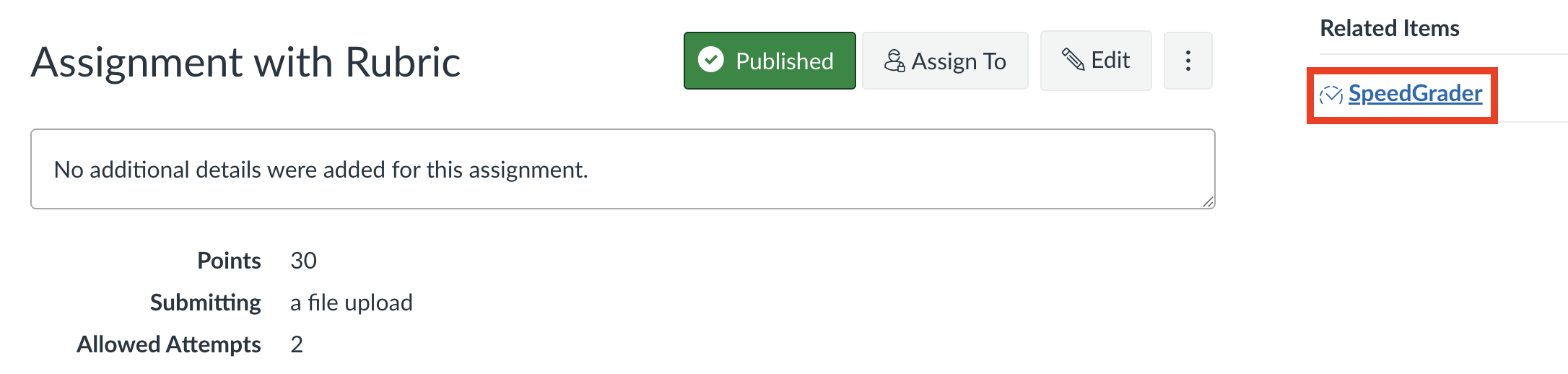
1. To grade an assignment that has a rubric, select Assignments from the Course Menu, select the assignment and select the SpeedGrader link found on the right-hand side of the page.
2. In the SpeedGrader, you will see the rubric on the right side window. You can select between 3 different View Modes and adjust the size of the window by dragging the gray margin between the submission window and the grading window.

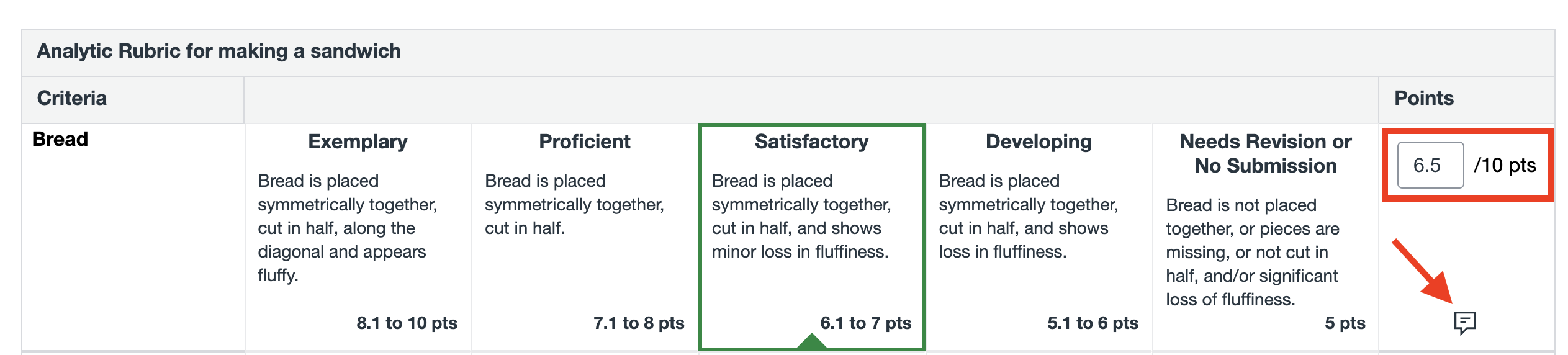
3. After reviewing the student’s work, select the appropriate point box in the rubric for each criteria.
If you have chosen the Range option, you can manually write in the exact points you want in the Points column to the far right. Note: the system defaults to the highest score in each range.
You can also add a comment for each criteria.
4. After the points and comments have been entered, click the Submit Assessment button to ensure your rubric entries are saved.
5. Add Additional Comments as needed. When finished, click the Submit Comment button.
Note: You can click on the Download Submission Comments button to download a PDF of the Additional Comments.

7. Select the arrow at the top, right-hand corner and follow the same process to grade the next student’s submission.
Additional Notes
- Rubrics can also be used with graded Discussions
- The rubric grade is not updated when grades are imported into the Gradebook using a CSV file.
-
It is possible to Bulk Download the completed Rubrics. Go to the Gradebook column for that Assignment, select the 3 vertical dots and then Bulk Download Rubrics

More information on how to use a Rubric to grade submissions in the SpeedGrader can be found at the following Canvas Community links below.