- Assignments Overview
- Comparison of Assignments and Quizzes
- Assignments Page (from Course Menu)
- Assignment Tips and Suggestions
Assignments Overview
- The Assignments tool creates an assignment within Quercus and, depending on the type of assignment, allows students to submit assignments directly within Quercus.
- Instructors (or anyone with grading privileges) can assign grades and provide written feedback within Quercus.
- When an assignment is created using the Assignment tool, a Gradebook column is automatically created.
- Assignments can be added to modules or pages, and you can create as many of them as you need.
- The file size limit for Quercus assignments is < 500 MB, and there are recommended file types.
- The file size limit for Ouriginal assignments is <100 MB, and there are specific recommended file types.
- Once students have submitted their assignments, instructors will be able to view and grade their work using the SpeedGrader tool that is accessed via the Gradebook.
- It is possible to include individual accommodations for students who need extra time.
- Assignments can be used with Turnitin to obtain textual similarity analysis of submitted content.
- Instructions on how to submit and verify assignments in Quercus are available for students.
Comparison of Quercus Assignments and Quizzes
Options |
Assignments |
Quizzes |
|---|---|---|
| Peer review assignment |  |
|
| Group assignment | |
|
| Auto-graded questions | |
|
| Randomize questions and answers | | |
| Turnitin option | |
|
| Annotate in SpeedGrader | |
|
| Timed assessment |
|
|
| Batch downloads |
|
|
Assignments Page (from Course Menu)
The Assignments Page is accessed from the Course Menu and contains all graded assessments created in the course.
The screenshot below shows the Assignments area, the +Assignment button and a sample published assignment.
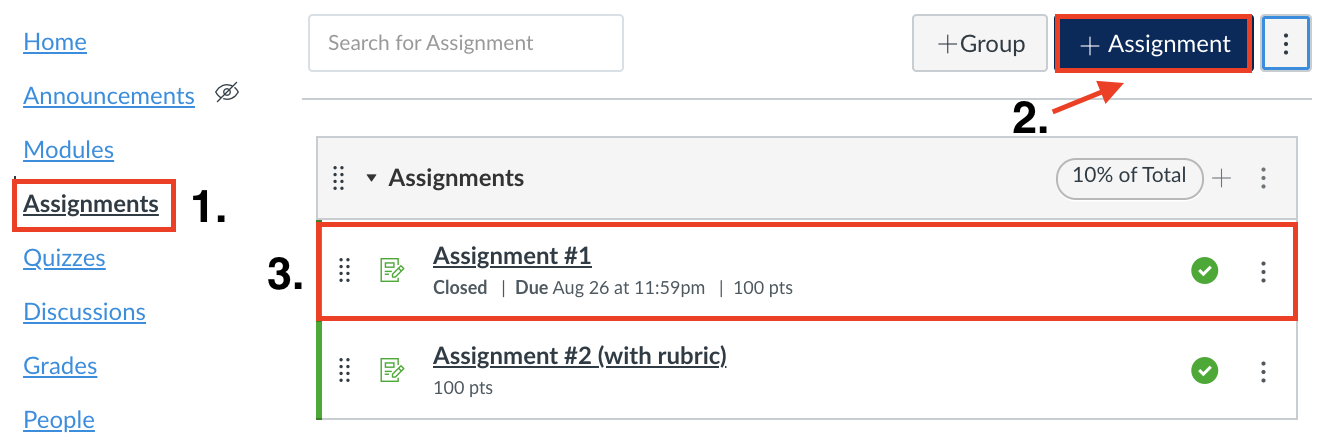
- Assignments in the Course Navigation Menu
- +Assignments to create an assignment
- A published assignment - available for student submissions
Assignment Groups
All graded assignments, including quizzes, graded discussion boards, assignment submissions, participation marks can be organized in the Assignments area of the Course Navigation Menu using Assignment Groups.
Items in the Assignment Groups can be weighted so that final grades are calculated automatically based on Quercus items that have been graded. More information on Assignment Groups & Weighted Grades can be found here.
Assignment Tips and Suggestions
- We recommended that you share a link to our instructions for students on how to submit an assignment and what to do if they encounter any issues.
- Please reinforce that students should not use their phones to submit assignments.
- Ask students to use specific filename (e.g., Lastname_FirstInitial_AssignmentName)
- Use Restrict Upload File Type with caution, as all acceptable file types must be listed in order for students to be able to upload their assignments (e.g., .doc, .docx, pdf).
- Set the deadlines for assignments at a reasonable hour e.g., for 5:00 pm, 8:00 pm, and specify the time zone (i.e., UTM time, or EDT/EST), as setting a deadline for 11:59 am / pm can be stressful and confusing for students.