On This Page
- Using the SpeedGrader to mark student assignment submissions
- SpeedGrader Submission Reassignment
- Viewing and Grading an Audio / Video Submission
- Grading a Quercus Quiz
- Avoiding Data Loss with Multiple Graders
- Additional Resources
Using SpeedGrader to mark assignments
The SpeedGrader function allows you to review and grade assessments (Assignments, Quizzes, Discussions) within Quercus. To access the Speedgrader:
1. Go to Assignments and select the assignment you would like to grade.
2. Select the SpeedGrader button found on the right-hand side of the page.

3. Annotate the student's submission file. You will have the option to select text using the Selection tool. Other options to annotate include: Highlight, Point Annotation, Freetext, Strikethrough, Free draw annotation, and Area annotation.
Note: Annotation is only available with certain Submission Types, namely text or image based File Uploads. It does not work with the Media Recordings or Text Entry Online Entry Options.
4. Once you have completed annotating the submission, provide a grade and add comments.
5. Select the Submit button.
You can download a copy of the annotated paper for yor records.
Note: We recommend having only 1 Quercus window open while using SpeedGrader.
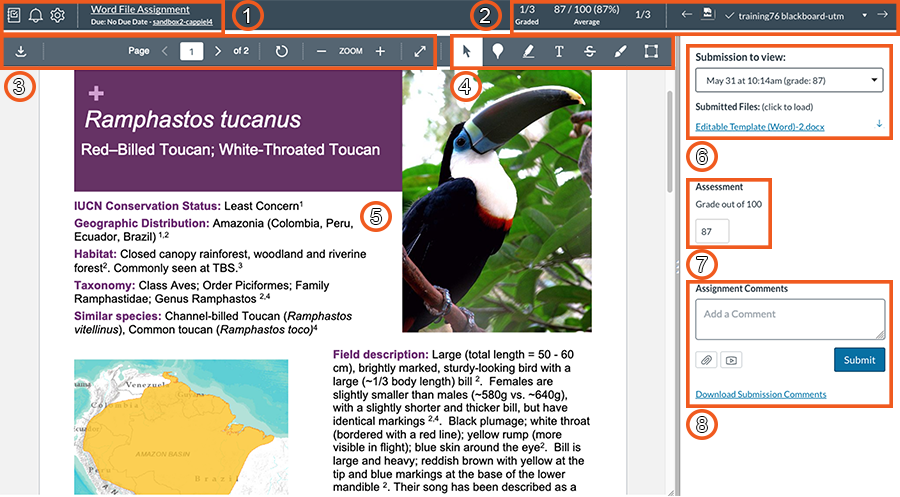
1. Gradebook: Return to the Gradebook
Settings: Access to "Options", "Keyboard Shortcuts", and "Help"
Assignment name: when selected takes you to the Assignment page
Due Date: shows the due date for an assignment, if one has been assigned
Course Name: when selected takes you to the course Home page
2. Current assignment total assignments
Average grade: shows the current average grade for the current assignment
Student name: when selected shows a list of students with links to their submissions for the current assignment
Arrows: previous and next arrows take you to the previous and next student submissions
3. Download annotated file: allows you to download the assignment submission with the annotations
Current page of total pages
Page arrows: Shows the previous and next page arrows
Rotate Page Clockwise by 90 Degrees
Zoom Out and Zoom In
Enter Full Screen
4. Annotation tools (not available for Text Entry or Media Recordings): Selection, Point annotation, Highlight annotation, Freetext annotation, Strikeout annotation, Free draw annotation, Area annotation
5. DocViewer: Shows the student’s assignment submission
6. Submitted date or Submission to View: shows the date and time the assignment was submitted. For multiple submissions, provides a dropdown menu containing the different submissions
Submitted files - click to download the original file submitted
7. Assessment: Box to enter a grade of out the total number of points
8. Assignment Comments: add a comment and click the Submit button
Attachment: attach a file containing comments
Record: record an audio comment
Download Submission Comments: Link to Download Submission comments
Grade Assignment with SpeedGrader - Video (2 mins 16 s)
Notes:
- Files and fonts that can be viewed in SpeedGrader
- When students submit Word format file submissions in Quercus that contains fonts not listed in the link above, the SpeedGrader DocViewer will resize the text, causing it to not be visible. You may want to consider asking students to stick to certain fonts if submitting Word format file submissions in Quercus, as listed in the following link: https://community.instructure.com/en/kb/articles/662858-what-types-of-files-can-i-preview-in-canvas#document-preview-fonts
- If you would like students to submit assignments using other fonts than indicated in the link above then it may be a better idea to ask students to create and submit a PDF file for their assignment submission.
- For information on using a rubric to grade student assignment submissions please see our page.
SpeedGrader Submission Reassignment
When grading online assignments in the SpeedGrader, instructors can click on the Reassign button to reassign the assignment to a student. In order to enable the Reassign button, the instructor must:
- Enable multiple submissions for the assignment
- Have a due date attached to the assignment
- submit a comment for the assignment (only entering a grade will not enable the Reassign button)
Notes:
- Reassigning the assignment to the student does not change the due date
- This feature is not available for External Tools (LTI), "On paper", and "No submission" assignments
Viewing and grading an Audio / Video Submission
When the "Media Recordings" Online Submission Type Assignment option is selected, Instructors can play and grade students' audio or video assignment submissions (less than 500 MB) within the SpeedGrader. To view and grade Media Recordings in the speedgrader:
1. In the SpeedGrader, select the click here to view linked text, as shown in the screen shot below.
2. Press play to view the video in the SpeedGrader, as shown in the screen shot below.

3. Grades can be assigned and comments added in the grading area. Click Submit to save.
Notes:
- DocViewier annotations are not available when the "Media Recordings" Online Submission Type Assignment option is selected
- Media recording submissions cannot be downloaded
Viewing and grading a "Website URL" Online Submission Type Assignment
When the "Website URL" Online Submission Type Assignment option is selected, Instructors can play and grade students' audio or video assignment submissions (greater than 500 MB) in the SpeedGrader. To view and grade Website URL submissions in the SpeedGrader:
1. In the SpeedGrader, select the link, as shown in the screen shot below.

2. Press play to view the video in the SpeedGrader, as shown in the screen shot below.

Notes:
- DocViewer annotations are not available with this submission type
- Website URLs cannot be re-uploaded to the Gradebook
Grading a Quercus Quiz
Quercus Quizzes can be viewed and graded via the Speedgrader. In particular, the Speedgrader is used to mark Essay and File Upload question types which cannot be automatically graded. To view and grade Quiz submissions in the SpeedGrader:
1. Go to Quizzes and select the assignment you would like to grade.
2. Select the SpeedGrader button found on the right-hand side of the page.

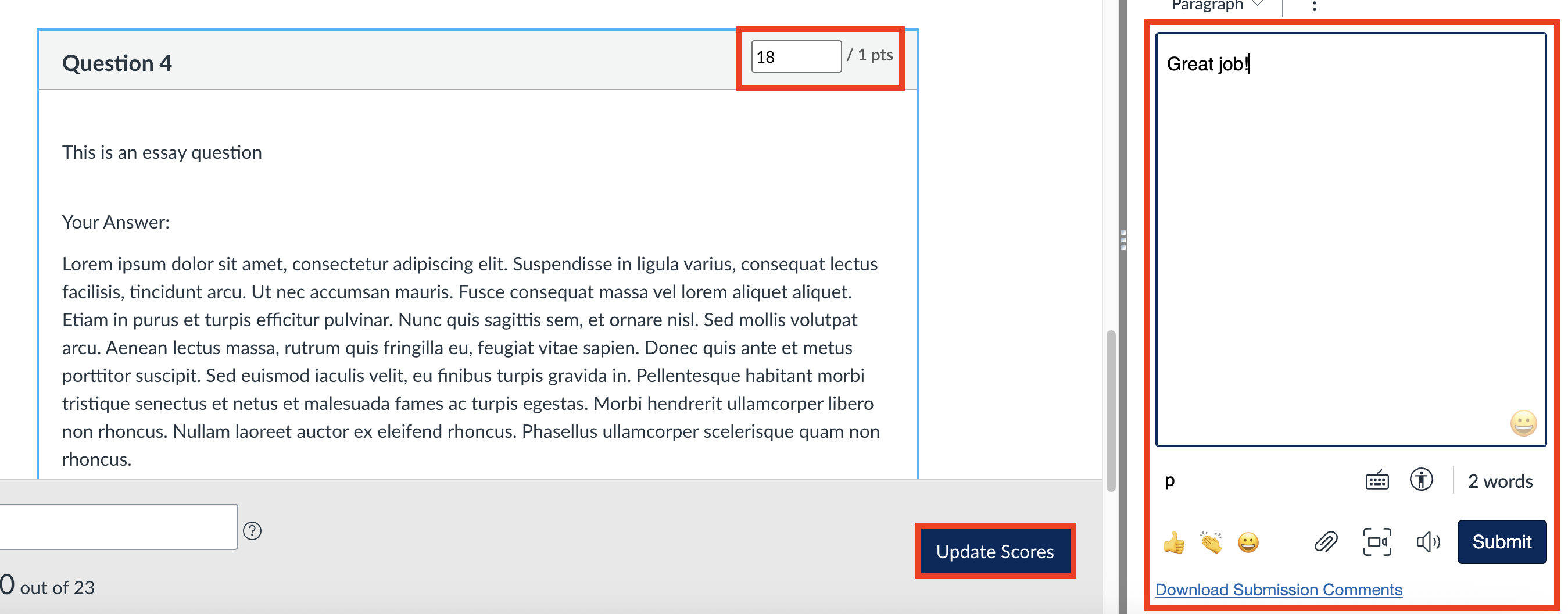
3. Automatically graded question types will already be graded by the system. For Essay or File Upload question types, locate them in the quiz to review and assign a grade.
The grading by quiz question option can be used so that graders can grade the same question across multiple submissions. You can see this option at the top of the preview window - click on the question number to stay on that question as you go from student to student. Note: This will work only if questions are in the same order for all students and have not been randomized using a Question Group.

4. After reviewing the student’s work, add the mark for the response and click on the Update Scores button.
5. Add a comment if needed and click on the Submit button.
Grade Individual Quiz Essay Questions - Video (56 s)
Notes:
- Rubrics can be attached to Quizzes to help provide students with feedback. They cannot be used for Quiz marking. See our Rubrics page for more information on Rubrics and Quizzes.
- For further information about a student's quiz submission, you can use technology-based resources, such as Course Data and Reports (e.g., the Access Report, Quiz Logs, Gradebook data). Please note (Instructure, 2021):
- "Quiz logs should not be used to validate academic integrity or identify occurrences of cheating."
- "Quiz logs are only retained for six (6) months."
- For more information regarding academic integrity, please visit the UTM Academic Integrity Website.
Avoiding Data loss with Multiple Graders
If multiple graders are grading the same students during overlapping sessions, even if they are not accessing the same student data at exactly the same time, annotation or grading data may not be saved properly.
If it is necessary to have multiple graders grade the same students:
-
Ensure that only one grader is using SpeedGrader at a time. One grader should complete and exit their session before the next grader launches the SpeedGrader.
-
If it is necessary to have overlapping grading sessions, ensure that each grader refreshes their browser after loading each new student submission in order to get the latest data.
Additional Resources
- More information on using the SpeedGrader can be found at the following link:
https://community.instructure.com/en/kb/articles/661158-how-do-i-use-speedgrader - For information on grading outside of Quercus and the SpeedGrader, visit our page.