Download Assignment Submissions
If desired, you can download all submissions for an assignment for offline review or archiving by following the instructions below:
1. Click on Grades from your course menu.
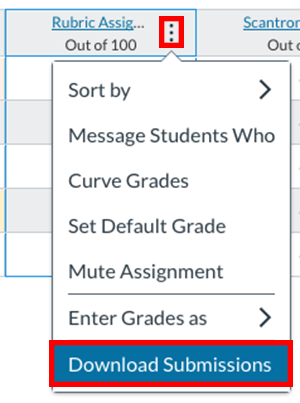
2. Find the assignment column, hover over the title and click on the 3 vertical dots
3. Select "Download Submissions" from the drop-down menu;
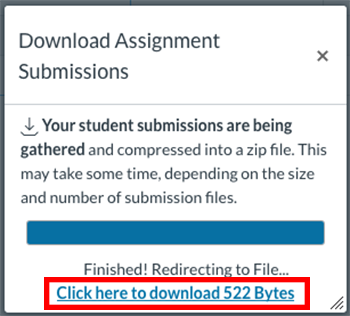
4. A box will appear letting you know that "your student submissions are being gathered". Depending on your browser settings, the file will download automatically, you can either select the "Click here to download..." link or wait for a box to appear that will promp you to download a ZIP file.
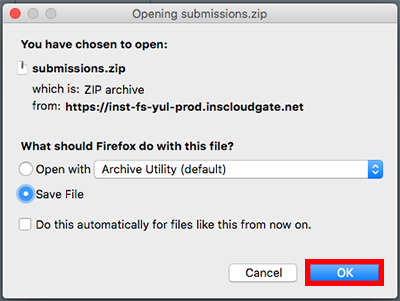
5. You can then unzip the file that you downloaded, and edit the individual assignment files.
Re-Upload Assignment Submissions
After downloading student submissions for an assignment, you can also re-upload a ZIP file containing annotated assignment submissions.
Note:
- You cannot change the names of the originally downloaded submission files or the re-upload assignment submissions process will not work.
- This process cannot be used to submit on the student's behalf - they must submitted originally
1. Click on Assignments from your course menu;
2. Click on the assignment;
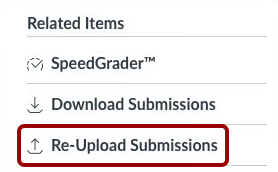
3. Click on the "Re-Upload Submissions" link on the right-hand side of the page;
4. In the Re-Upload Submission Files box, click the "Browse" or "Choose" button, depending on your Browser, locate the ZIP file containing the annotated assignment submissions and click the "Upload Files" button;
You should now be able to view the annotated versions of the assignments that you uploaded in the SpeedGrader. Students will be able to access their graded assignment from the their Grades page.
Batch Download, Grade, Batch Upload - Video (2 mins 14 s)