An alternative method to grading student assignment, outside of using the Speedgrader, is to batch download student submissions, grade them, and then batch upload them. Note: You will need to distribute the files if you have multiple graders.
Instructions:
1. Go to the Assignments area and click on the assignment name.
2. Select Download Submissions.

3. Save the zipped file that contains all of the assignments and click on the OK button.
4. Unzip the compressed file. Open each file individually. Add grades and comments.
5. Save each file and do not change the name of the file.
6. Follow the same steps for all of the student submission files.
7. Once the grades and comments have been added to each file, compress the folder.
8. Go back to the assignment. Select Re-Upload Submissions.
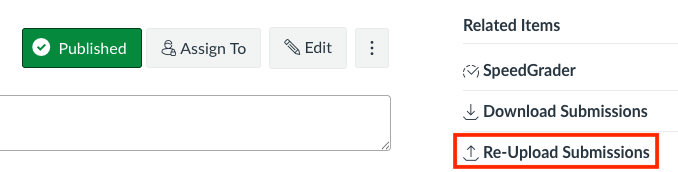
9. Select the compressed file with the saved graded submissions.
10. Click on Upload Files. Two options are then provided, - to go Back to Assignment Page or to go Back to Gradebook. Select Back to Gradebook.
11. Click on the cell and click on the arrow that appears on the right and select SpeedGrader.
12. The graded uploaded file will be in the Assignment Comments as an attached file. Add a grade and click on the Submit button. Note: For large classes, another option is to download the Gradebook and provide each grader with a spreadsheet with the students in their tutorial and have a head TA upload the grades and graded assignment submission files.
13. Go to the top right-hand corner and follow the same steps for the next student’s work.
Batch Download, Grade, Batch Upload - Video (2 mins 14 s)
Ask students to add information such as their first name, last name, student number in their assignment filename to make it easier to identify the files.
Select the Save button when entering comments in a rubric before selecting the Submit button.