You can control how students access content and progress through your course by creating modules with prerequisites and requirements. This can be done for example by setting
- The second module or any subsequent module can have a Prerequisite to complete a previous module.
- Any module can be set up to have a Requirement to complete an item or several items in the module.
To set up a Prerequisite:
1. Go to Modules in your course menu.
2. Select the button that has 3 vertical dots to the right of the module name.
3. Select the Edit button.

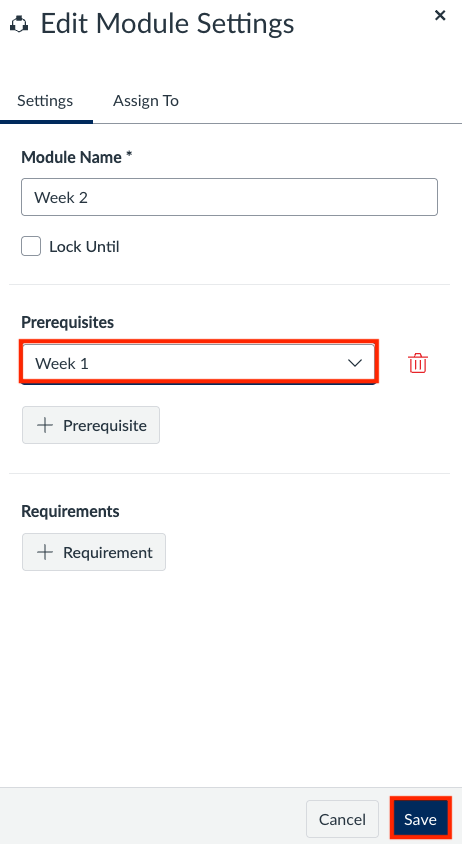
4. Select the + Prerequisite button.

5. Enter the module(s) that must be completed.
6. Select the Save button.
Notes:
- More than one prerequisite can be added.
- The prerequisite(s) that are set will be indicated in the module header.

- When changing prerequisites that have been already fulfilled by students, a box will appear asking if these students can proceed (if so, click the Continue button) or if the modules should be re-locked, requiring students to complete the prerequisites again (click the Re-Lock Modules button).
More information on Prerequisites is provided at the link below:
https://community.instructure.com/en/kb/articles/660896-how-do-i-add-prerequisites-to-a-module
Requirements can be used to require students to complete, one, some, or all items in a module.
Requirement options include:
- View specific items
- Mark an item as done
- Post a reply in a Discussion Board or contribute to a Page (ungraded)
- Submit an assignment, a graded discussion post, or complete a quiz Note: Submissions must be made by students, the instructor cannot manually submit a grade for students.
- Meet a minimum score (for any graded item)
To set up (a) Requirement(s):
1. Go to Modules in your course menu.
2. Select the button that has 3 vertical dots to the right of the module name.
3. Select the Edit button.
4. Select the + Requirement button.
5. Enter the items that are required, by using one of the following options:
1. Complete all - Students must complete all of these requirements.
- Optional Tickbox - Students must move through requirements in sequential order
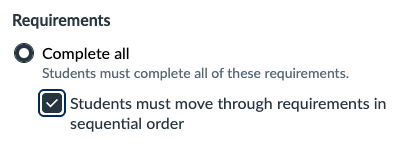
- Note: Ticking this box will prevent students from accessing items unless they use the Next button at the bottom right of each item page. They cannot access the items directly via the Gradebook.
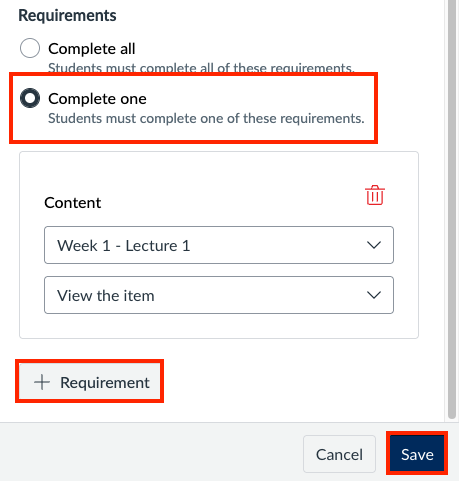
2. Complete one - Students must complete one of these requirements. Then set the requirement for each listed module item that is required. Depending on the module item type, the following options may be displayed:
- View the item (students must view the item)
- Mark as done (requires student to mark the assignment or page as done before moving onto the next item - only supported if the item is located in one module)
- Contribute to the page (requires students to contribute to a non-graded discussion or page (students must be given permission to edit pages).
- Submit the assignment (requires students to submit an assignment, post a reply to a graded discussion, or submit a quiz) (NOTE: Canvas does not allow the grader to submit a grade to fulfill this requirement. The submission must be made by the student).
- Score at least (requires students to meet a minimum submission score; an additional field will appear where you can enter the minimum score that students must earn; available for all graded items after a grade has been posted, then the student can progress to the next item).
6. Select the + Requirement option to add additional requirements.
7. Select the Save button.
If you make any changes to requirements, Canvas will ask if you want to re-lock the module and have students start over, or if you want students not to lose their progress (however, changes you have made may not be reflected for those students who have already accessed the modules).
More information on Requirements is provided at the link below:
https://community.instructure.com/en/kb/articles/660897-how-do-i-add-requirements-to-a-module