On This Page
Adding Questions to a Quiz
When creating a quiz, questions are added on the Quiz Questions tab.
The Quiz Questions tab provides the following 3 options for adding questions to a quiz:
- +New Question allows you to add a question that is intended to be used for the quiz you are creating. A copy of each question created using this method will be added to Unfiled Questions in the Question Bank area. These can be moved or copied to Question Banks.
- +New Question Group can be used to create quiz questions together in a group that can be used group a set of question together in a quiz and/or to randomize questions within a quiz.
- You have the option to specify how many question from a group students must answer - if this number is less than the total number of questions in the group, the system will randomize which questions are shown to each student
- Use the Find Questions option below to use questions from a Question Bank in your Question Group. Do not use the Link to a Question Bank option to do this as this can cause issues in the even you need to change or regrade the questions after students have submitted.
- Find Questions can be used to find individual questions from Question Banks including Unfiled Questions. You can select individual questions, or all questions in a Question Bank.
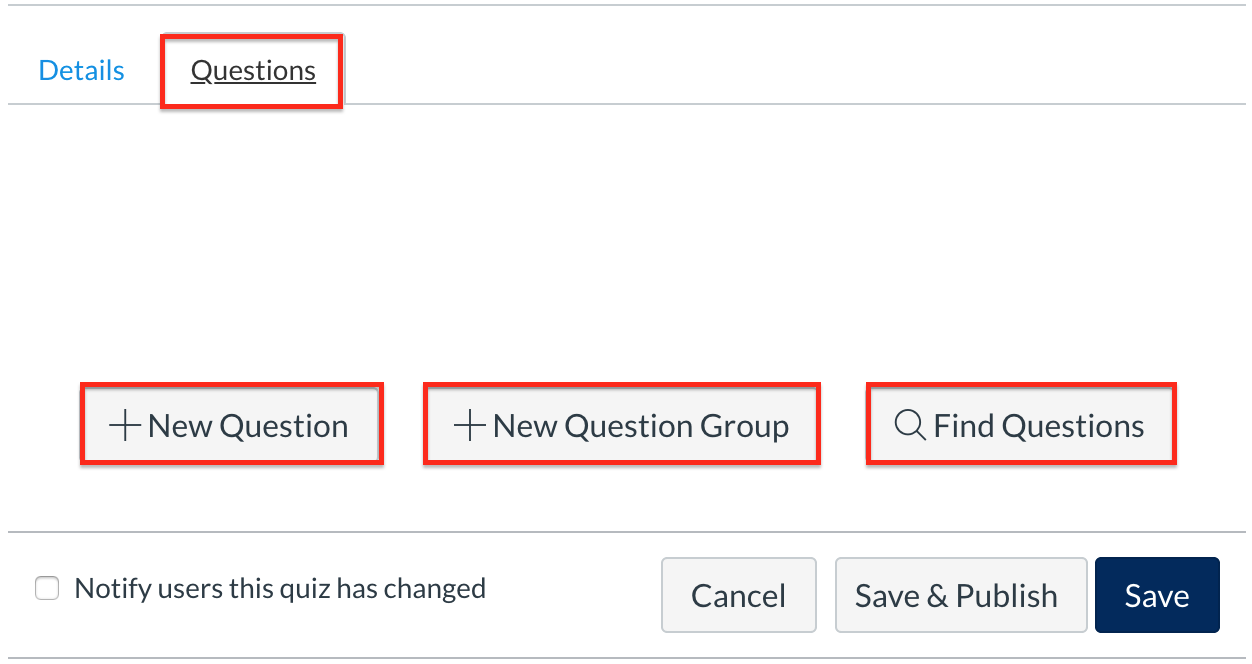
- After creating each question, remember to click on Update Question to ensure it is saved. You also must click on Save or Save & Publish when you are finished making updates.

Types of Quiz Questions
There are 12 different types of questions that can be used in a Quiz including:
- Multiple Choice*
- True/False*
- Fill in the Blank*
- Fill in Multiple Blanks*
- Multiple Answers*
- Multiple Drop-downs*
- Matching*
- Numerical Answer*
- Formula Question*
- Essay Question
- File Upload Question
- Text (no question)
(*) Denotes an automatically graded question type
Question Banks
Questions Banks allow you to create collections of questions that can be used in a Quercus Quizzes in a course or across several courses.
If you decide to use Question Banks to create your quiz, the following tips may be helpful:
- Add questions to the Question Bank first and finalize them. Then add them into the Quiz by using the Find Questions option.
- If questions will be selected randomly from a question bank, it is best to save questions that are of the same (similar types), on the same (similar topics), worth the same number of points in the same question bank. This will ensure that different attempts are more-or-less consistent in terms of difficulty, assessment, and scoring.
- If you have more than 50 questions in a Question Bank, you will not be able to see the question details.
- If you have more than 50 questions in a Question Bank, and then use the Find Questions button to include questions in a quiz, you will need to select the more questions link until all of the questions you want to include are visible.
- Please note that item analysis has some limitations. As noted by Canvas, "Quiz statistics will only generate for quizzes with 100 or fewer unique questions, or 1,000 total attempts. For example, a quiz with 200 questions will not generate quiz statistics, but a quiz with 75 questions will generate quiz statistics until the quiz has reached 1,000 attempts. Results greater than these maximum values can be viewed by downloading the Student Analysis report and viewing the CSV file in Excel." - https://community.instructure.com/en/kb/articles/661032-once-i-publish-a-quiz-what-kinds-of-quiz-statistics-are-available
- Information on creating a Question Bank can be found here.
Notes:
- Please ensure that all questions are finalized prior to students taking the quiz, as only certain types of quiz questions (e.g., multiple choice, true/false, multiple answer) can be regraded in some situations. If you find an error in your quiz after students have submitted, please reach out to us at utml.instructech@utoronto.ca for assistance on how to regrade the quiz.
- It is possible to separate the manually graded items from the automatically graded items. For example, Part A could include automatically graded items and Part B could include manually graded items. This allows the manually graded items to be more easily graded.