The quiz tool is used to create online quizzes and surveys. For step-by-step instructions on creating Classic Quizzes, please see below.
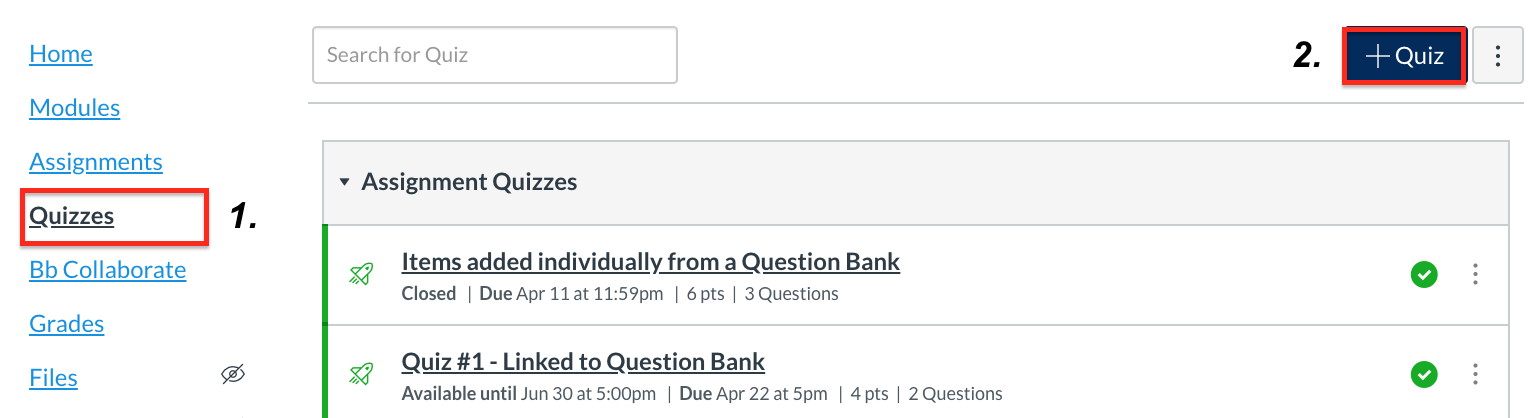
- Go to the Quizzes area in the Course Navigation Menu.
- Select +Quiz to create a quiz.
- Note: if you have New Quizzes enabled as a feature in your course, you will see this button as +Quiz/Survey
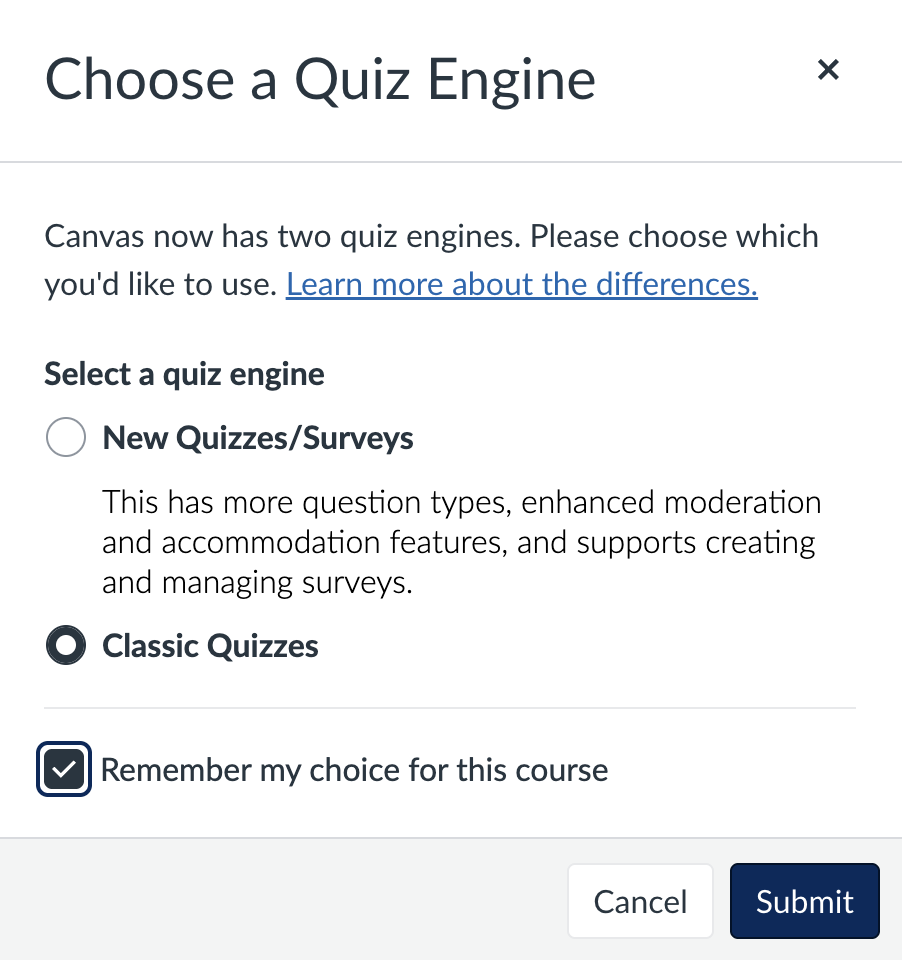
- If the Choose a Quiz Engine screen appears, it is recommended that you select Classic Quizzes for now. The instructions below are for creating a classic quiz.
- Select Remember my choice for this course.
- Note: it is possible to reset your choice at any time. On the Quizzes page, click on the three vertical dots next to the +Quiz button and select Reset quiz engine choice

- Note: it is possible to reset your choice at any time. On the Quizzes page, click on the three vertical dots next to the +Quiz button and select Reset quiz engine choice
- Click on the Submit button.
- More information on New Quizzes is available on the Instructure website
Quiz Details Tab

Similar to a Quercus Assignment, under the Details tab, you can:
- Add a quiz name
- Include quiz instructions using the rich content editor, including:
- Goal(s) of the quiz/test.
- Instructions regarding how students are to complete the quiz / test (e.g., time limit, window of time that the quiz / test will be available).
- Information regarding the due date.
- Number and types of questions and suggested time per question.
- Any word limits (e.g., for Essay questions).
- Formatting requirements (e.g., for File Upload questions).
- Authorized aids / Unauthorized aids.
- Academic Integrity reminder , some wording is suggested below:
- In submitting this quiz/test, the expectation is that your conduct during this assessment adheres to the Code of Behaviour on Academic Matters and that you have not acted in such a way that would constitute cheating, misrepresentation, or unfairness, including but not limited to using unauthorized aids and assistance, impersonating another person, and committing plagiarism.
- Using the ribbon, it is possible to include links to other areas of the course, documents or images that have been uploaded to Quercus. Note: It is recommended that video content be uploaded to a streaming media server, such as MyMedia and embedded. Other items that can be included in quiz instructions include:
- Math Equations
- YouTube videos (NOTE: YouTube videos may not be viewable in some countries)
- MS Teams Video meetings
- Recording or uploaded media content
- Select the Assignment Group for the quiz (if applicable). Quizzes can also be placed into Assignment Groups later on the Assignments page.
- Set the quiz type:
- Practice Quiz: This type of quiz can be used as a learning tool to help students see how well they understand the course material. Students do not receive a grade for practice quizzes. Practice quizzes do not appear in the Gradebook or SpeedGrader and do not display on the student Grades page.
- Graded Quiz: The names of individual students will be associated with their particular responses and a Gradebook column is automatically created. Certain types of questions can be automatically graded, and other questions, for example essay questions, require manual grading.
- Graded Survey: A graded survey allows the instructor to give students full points for completing the survey, but it does not allow the survey to be graded for right or wrong answers. Graded surveys have the option to be anonymous.
- Ungraded Surveys: An ungraded survey allows you to get opinions or other information from your students, but students do not receive a grade for their responses. Ungraded surveys can be anonymous. Note: The ungraded survey will not be displayed in the Gradebook.
Note: In order to make a graded or ungraded survey anonymous, you will need to check the box next to "Keep Submissions Anonymous".

Some suggestions to support academic integrity are to:
- Select Shuffle Answers so that students will receive multiple choice question responses in a different order. Note: If this option is selected, ensure that there are no dependencies in the question responses (e.g., All of the above).
- Set a Time Limit to activate the Auto Submit feature. Once a student begins a quiz, it cannot be paused. When the time limit is reached, the quiz will be submitted automatically. If students lose internet connection they should be able to resume the quiz if they log in before the timer runs out.
- For high-stakes quizzes, it is recommended that under Allow Multiple Attempts the Allowed Attempts be set to 1. For other types of assessments, additional attempts can be set and there will be the option to keep the Highest, Latest, or Average score.
- It is recommended that you do not use the Let Students See Their Quiz Responses option until all students have taken the quiz and the quiz responses have been graded. You can achieve this by changing this option after grading, or by using the date option to correspond to when grading will be complete. Note: this option is clicked on by default and needs to be un-clicked to be turned off.
- It is possible to Show one question at a time, which will display one question on the screen at a time. There is also an option to Lock questions after answering, which means that students are not able to go back to previous questions.
Note: If you have selected this option, students will see a warning before beginning the quiz. - Another option is to set Require an access code and provide the access password to students prior to the quiz.
-
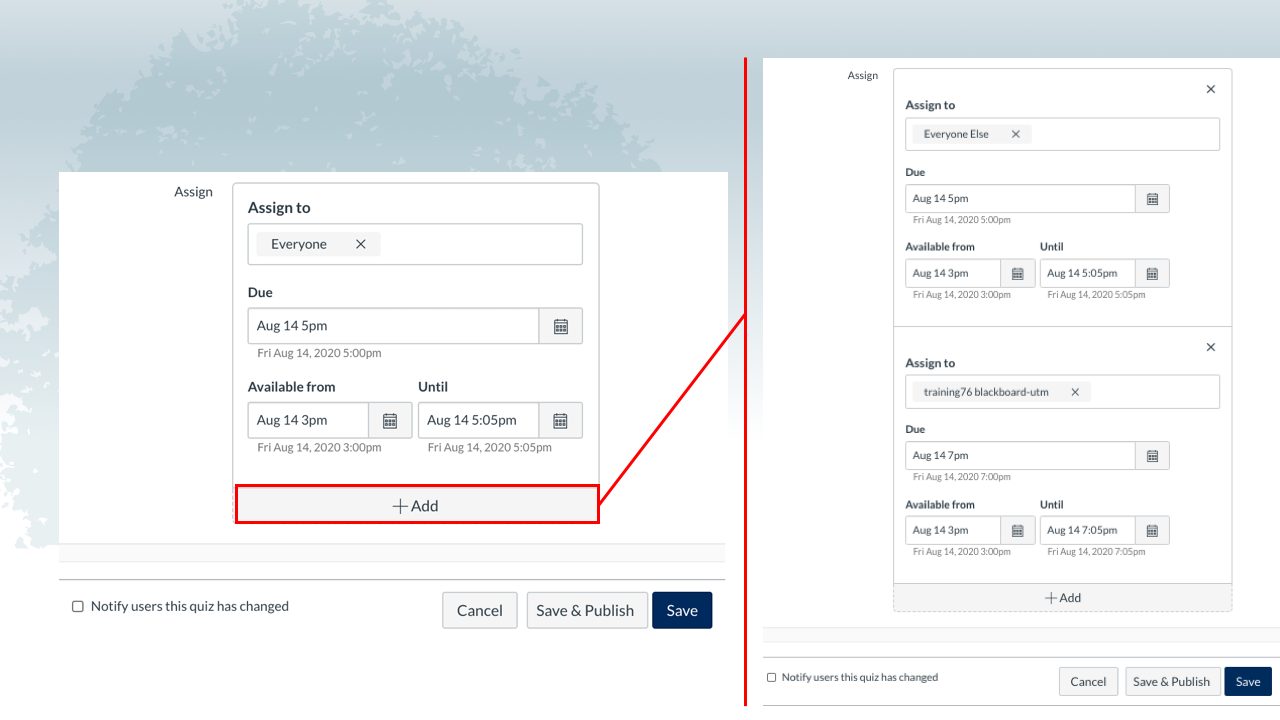
- Assign a Due, Available from, and Until day and time.
- Ensure all 3 dates and times are set – the Available from, Due and Until dates and times so that students will be able to view the quiz in their To Do items.
- If you are allowing students to submit late, the Until date should be after the Due Date. If you do not wish to allow students to take the quiz after the due date/time has past, the Until date and Due date should be the same.
- Assign a Due, Available from, and Until day and time.
- It is possible to set up a quiz with different windows of availability depending on whether the student has an identified accommodation that has been confirmed with Accessibility Services (UTM), may have potential time zone issues, or is part of a specific tutorial or practical section that has been crosslisted. Consult the Accommodations in Quercus webpage for more detailed information on setting up specific times for individual students or tutorial/practical groups.