- Recommendations for Use
- Instructions for Creating a Quercus Discussion
- Instructions for students using Discussions (opens a new page)
Instructors can create regular, graded, and/or group discussions in their Quercus courses.
Recommendations for Use
- Provide guidelines to students to ensure that posts and replies are balanced and useful.
- Provide students with discussion prompts that help to frame the discussion.
- Ask students to provide examples and to support their arguments citing appropriate and relevant sources.
- Set clear expectations regarding when and how much:
- students need to post (e.g., 500 words once a week by Wednesday).
- students need to reply (if required) (e.g., 150 - 200 words to 2 fellow students once a week by Friday).
- you as instructor will respond to Discussion Board posts (e.g., once a week on Fridays by 5:00 pm, instructor will review the Discussion board and reply to selected entries).
- Consider integrating Discussion Board activities with other activities to support and reinforce student learning (e.g., one week discussion board post, following week complete individual assignment, then next week individual synthesis reflection).
- Ensure students understand how their Discussion Board participation will be evaluated (e.g., students select 1 or 2 discussion posts for submission as a graded assignment) and share grading scales and rubrics with students.
| Interactivity Considerations | Inclusivity Considerations |
|---|---|
|
|
Instructions for Creating a Quercus Discussion
Below are instructions for creating a discussion:
1. Select Discussions from the Course Menu.
2. Select the + Discussion button.

3. Fill out the name of the discussion in the Topic Title field and any instructions in the Rich Content Editor box.
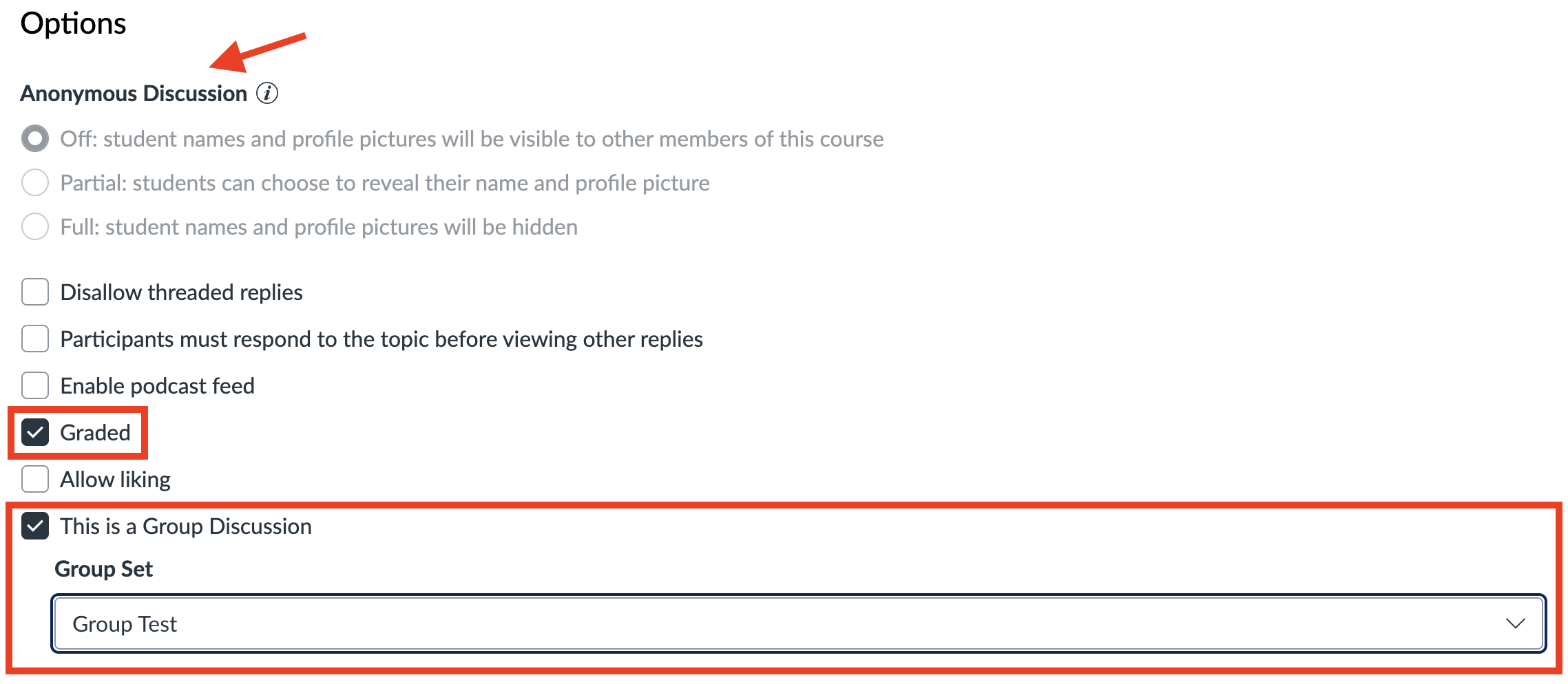
4. Verify the other discussion Options. Here you have a variety of options, including making the discussion Anonymous, Graded, or a Group Discussion.
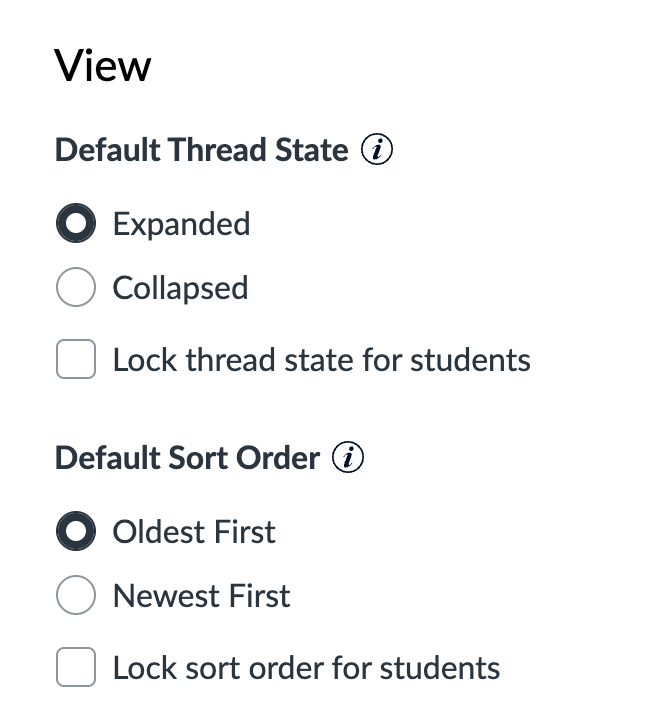
You also have options you want the Discussion to appear
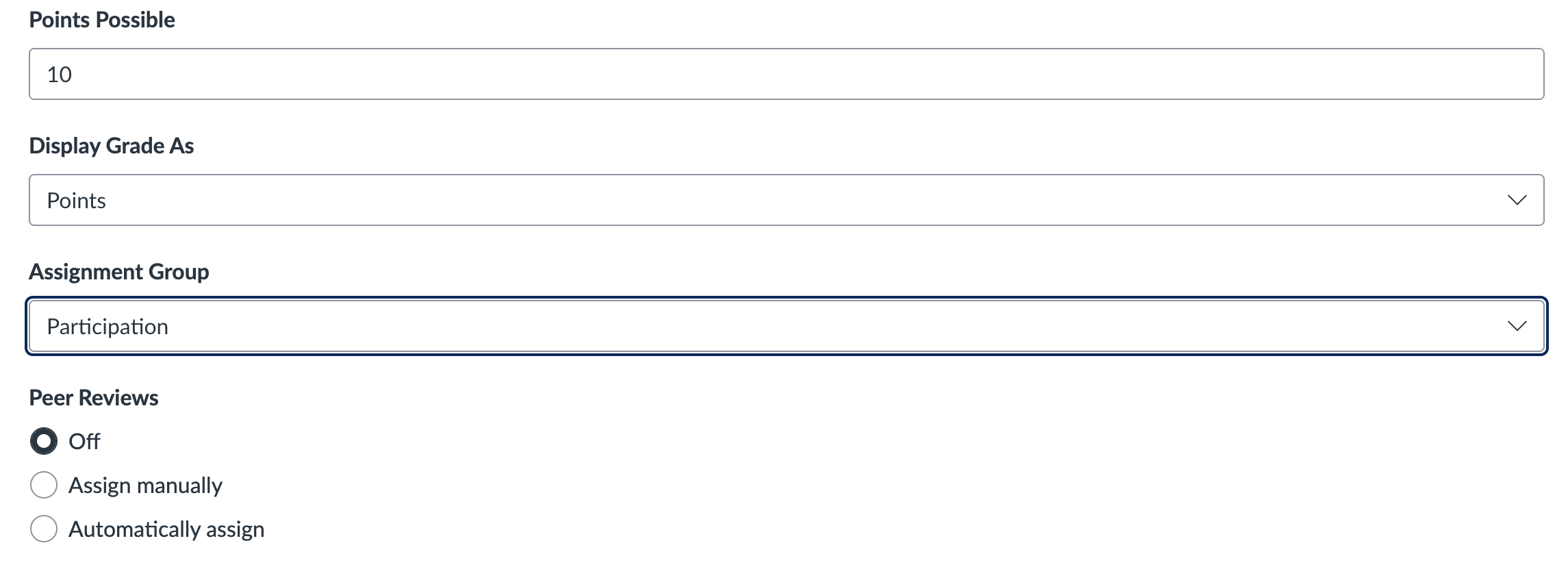
For Graded Assignments, you can assign Points and add the Discussion to an Assignment Group. You can also use the Peer Review function with Discussions.
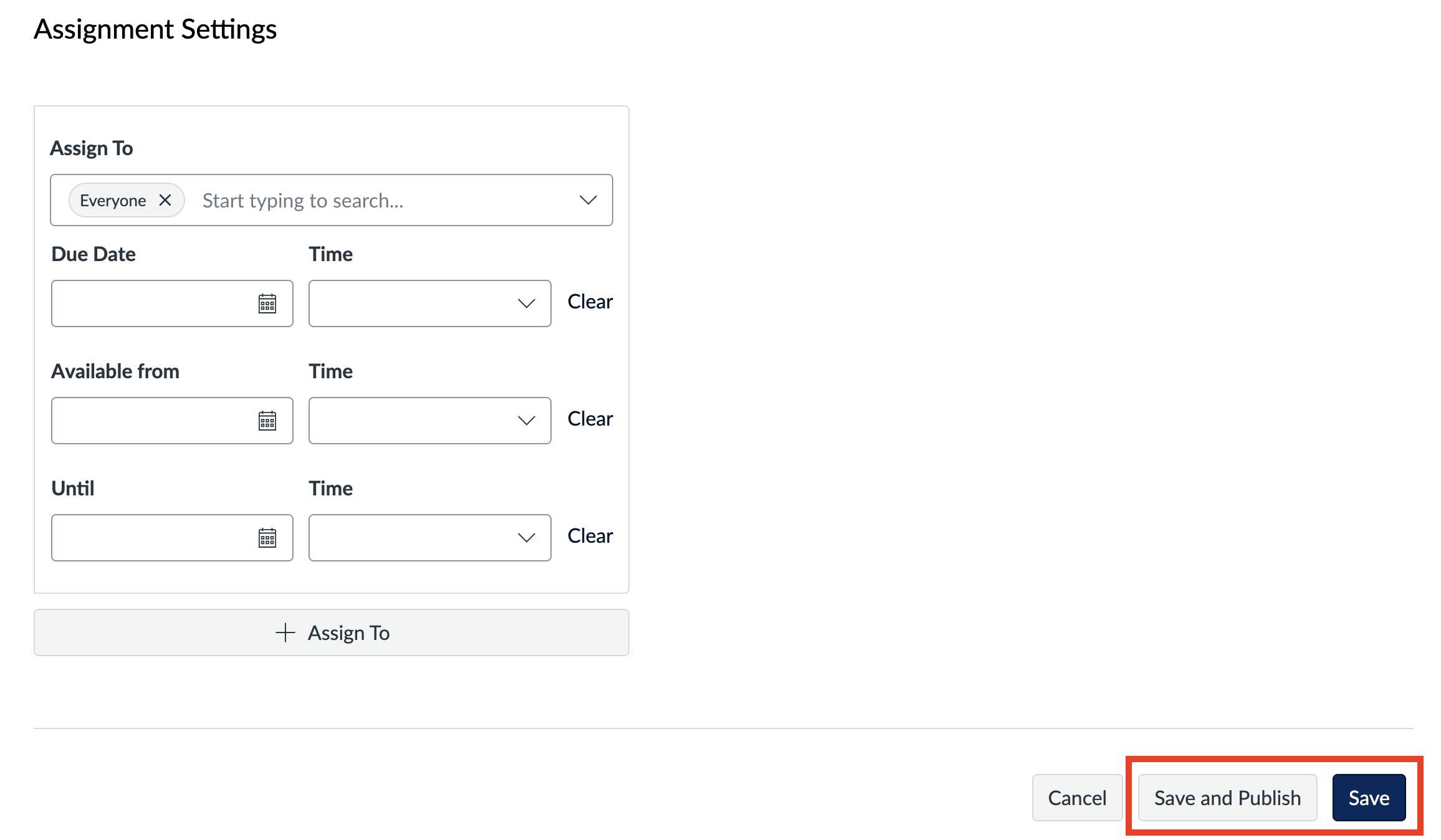
5. Complete the Assign To Information including the Due Date and Availability Dates. Select the Save button to continue editing at a later time or the Save & Publish button to make the discussion visible to students.
The students will now be able to access this discussion by selecting Discussions from their course menu. Below is a video on how to add a Discussion to your Quercus course.
Add Discussion Board - Video (35 s)